Scheduling an Interview - Recruiter
(Recruiter) HireNow Portal > Recruitment Campaigns > (select a campaign) > (Click an Applicant on main table) (Interviewer/Reviewer) HireNow Portal > Interviews
Description
As a interviewer of HireNow, I want to be able to conduct external interviews and upload external recordings
Applicable User Roles
List of roles that have access or can use this feature.
Recruiter
How To
Schedule an Interview
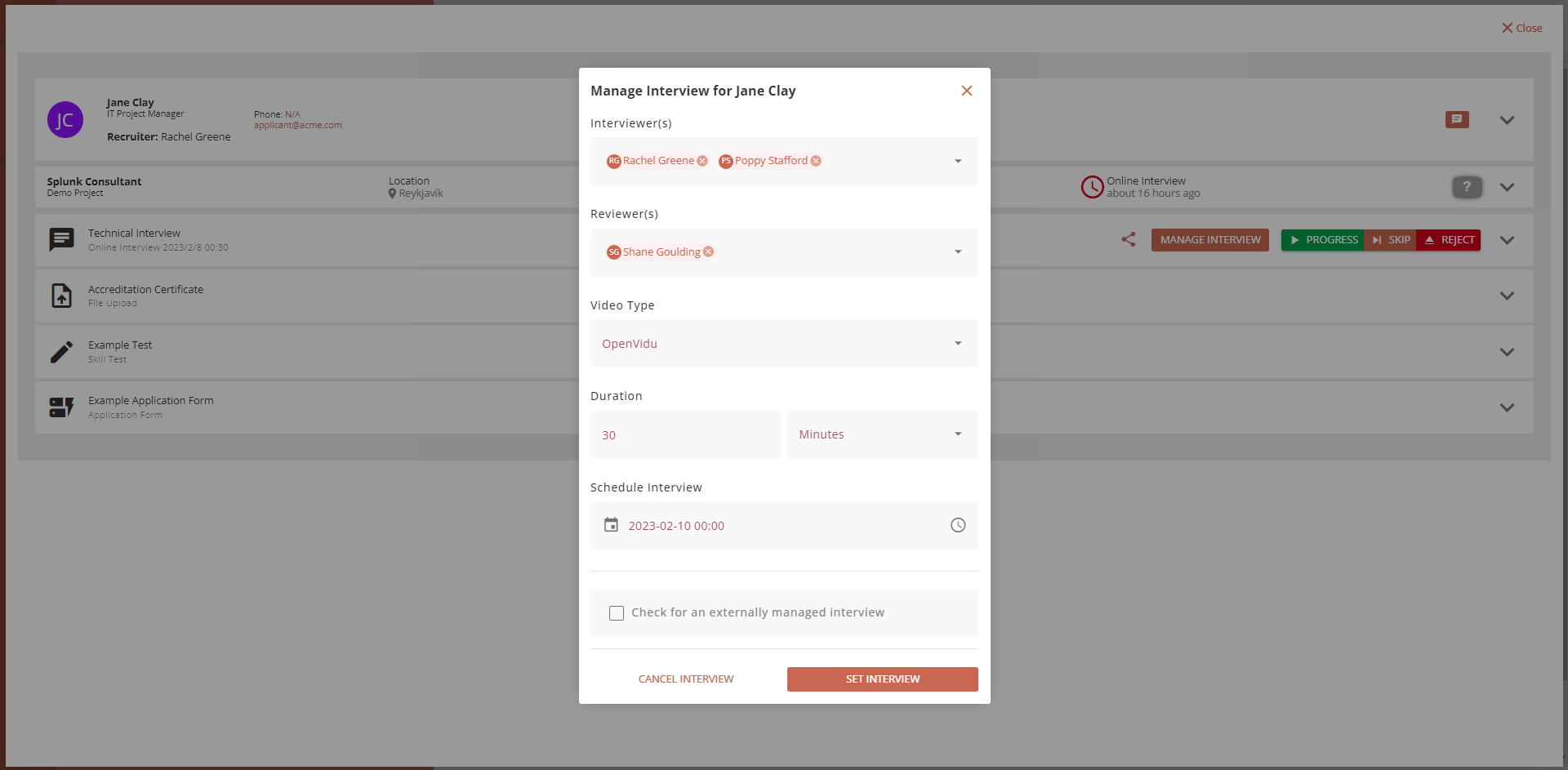
To schedule an interview, click on the applicants name to view the application steps. If they are on the Interview step, click Manage Interview button to bring up the Manage Interview pop-up.
Specify the interviewer(s) and reviewer(s) you wish to have access to the interview session. You must have at least one interviewer to schedule an interview.
Depending on your company settings, you will be able to select between video providers. Contact your company admin for more information about video types and their differences.
The final step is to schedule the interview time. Click on the 'Schedule Element' field to bring up a calendar and clock element which allows you to select a time for the interview.
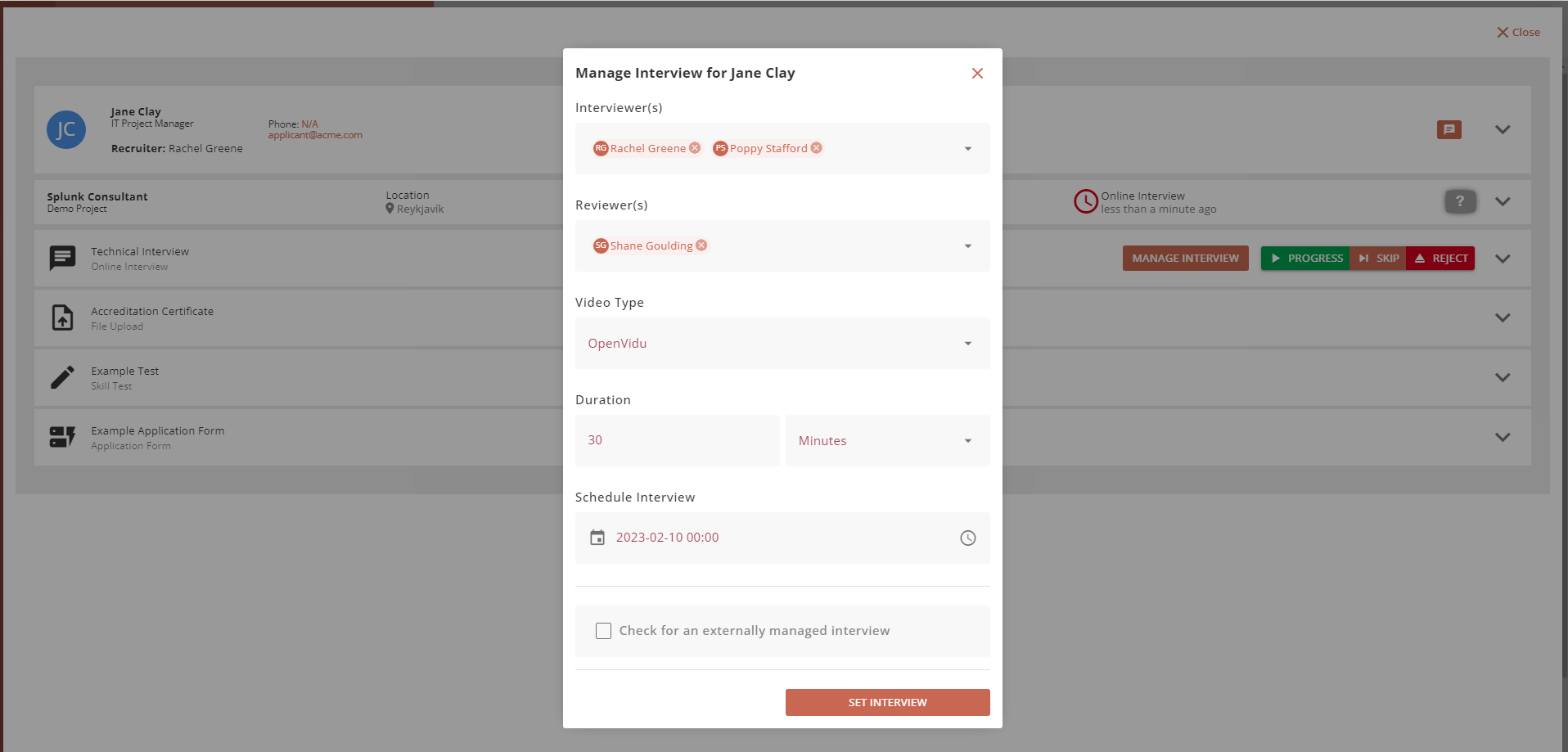
If you wish to conduct the interview outside of the platform, check the Externally Managed interview checkbox. This will still schedule the interview, and participants will still receive email invites, but there will be no option to join the interview on the platform.
If you have already completed the interview outside of the platform and just want to upload the video recording and leave feedback, after checking the Externally Managed Interview checkbox, check the newly visible Already Completed checkbox. This will disable interview scheduling and emails for the interview session.
Once you are happy with all the options, click on Set Interview to schedule the interview. This will automatically send off emails to the applicants and the interviewer(s) with a calendar invite and a direct link to the interview.
Modifying or Cancelling a Scheduled Interview
To edit a scheduled interview, click on the Manage Interview button to open the Manage Interview dialog and edit any fields.Once all changes have been made, save changes by clicking the Set Interview button. If changes to the scheduled time are made, all relevant parties will be notified via email.
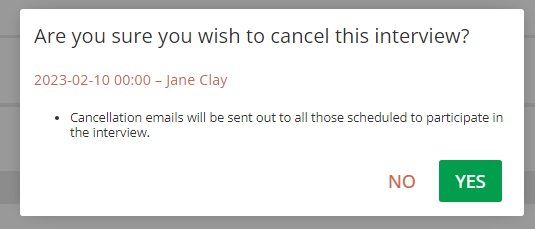
To Cancel an interview, click the Manage Interview button on an scheduled interview, and click the Cancel Interview button to cancel the scheduled interview session. All relevant parties will be notified by email.
To exit without saving any changes, click the “X” button in the top right of the pop-up.