Applying for a Role
Description
As a applicant, I am able to create an application on a campaign so I can begin the process sof applying for a new job.
Applicable User Roles
List of roles that have access or can use this feature.
Applicant
Internal Applicant
How To
Follow a Link to Apply for a Role
In order to join a recruitment campaign on SkillsNow, you will need to follow a link which will enrol you in that campaign. This link will either be given to you by a recruiter, or obtained from a Job Board or similar site.
If you do not have an account, after following the link the first thing you will need to do is Register an account
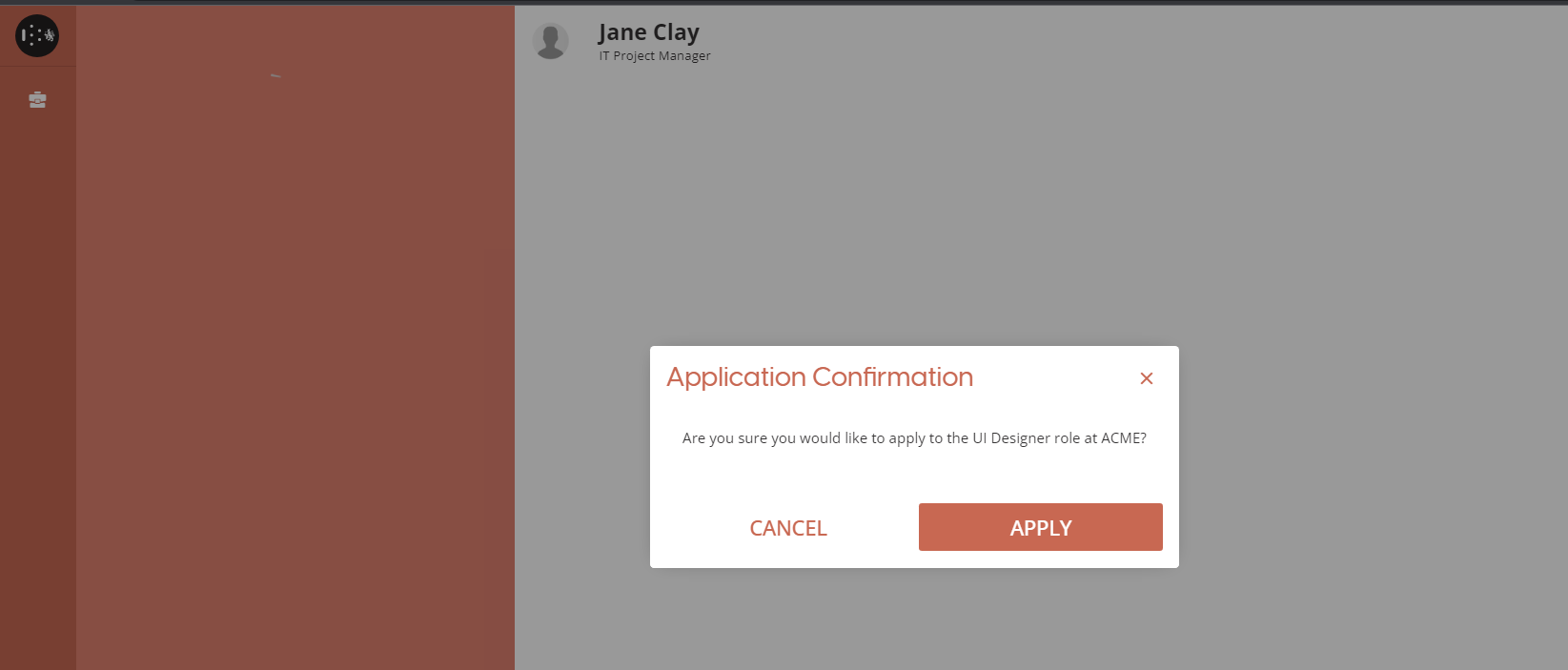
After successfully logging in via the link provided, you will land on the HireNow poral
Applications Page
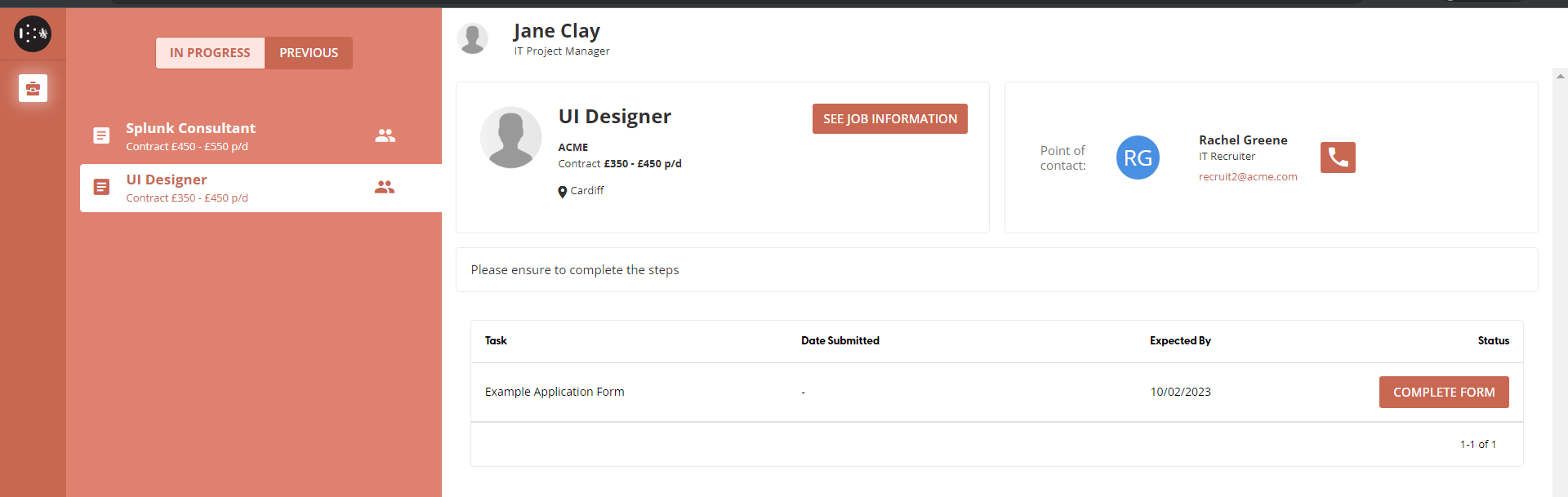
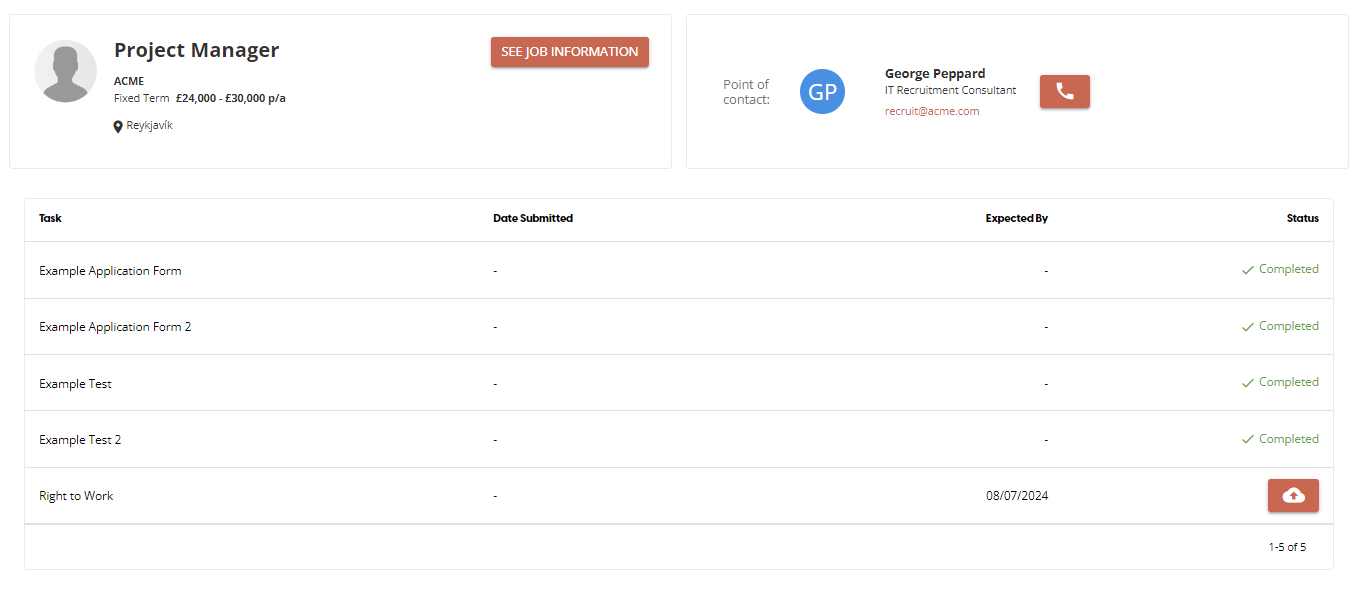
The Applications page allows you to see information about both In Progress or Previously completed applications.
The Campaign Banner shows information about the the role you are applying for:
- Title
- Company
- Pay
- Location
- Your point of contact
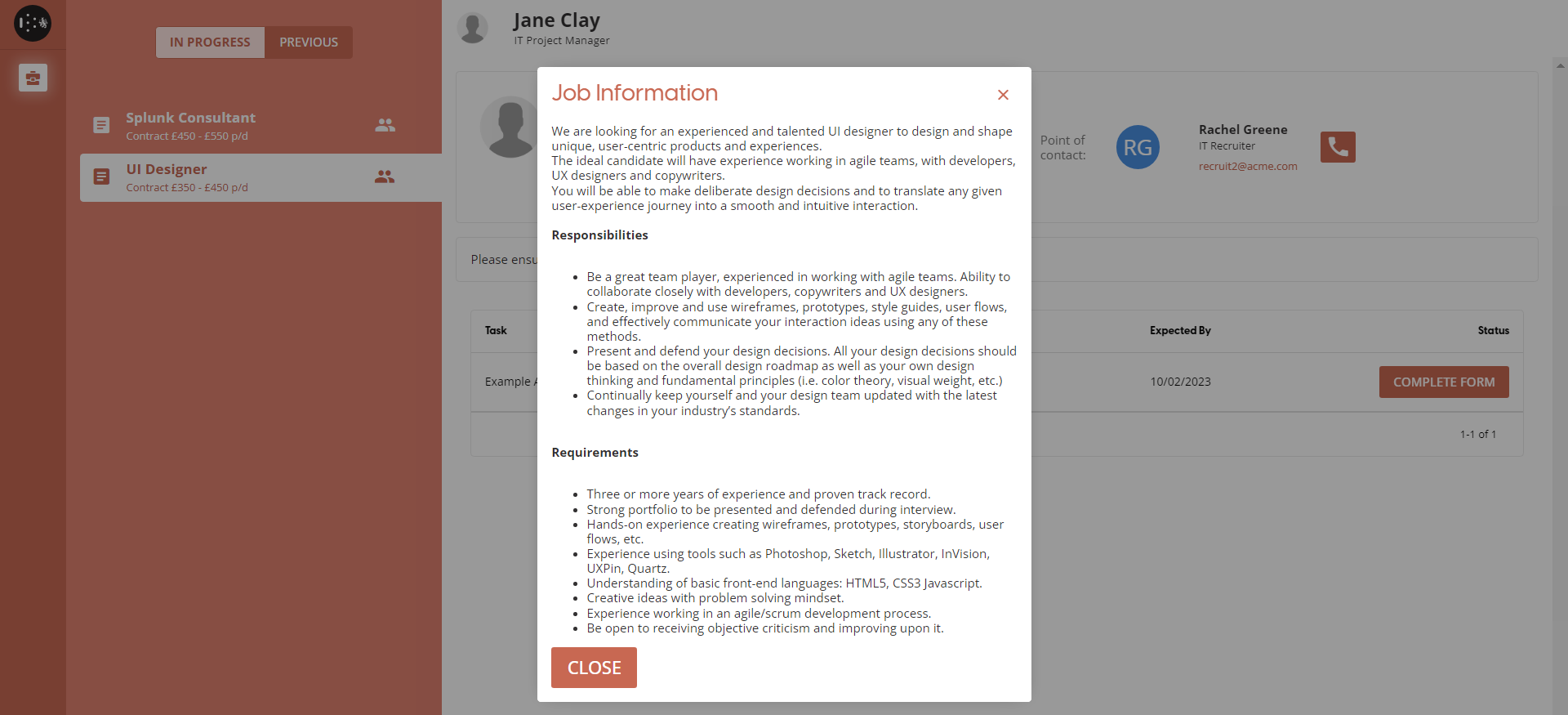
Clicking on the See Job Information button will open a pop-up with a detailed Job Description.
Application Step Types
Forms
One of the step types used in a recruitment campaign are Recruitment Forms. These forms include a variety of different elements, all of which are required to complete a form. These range from radio buttons, dropdown lists or text boxes.
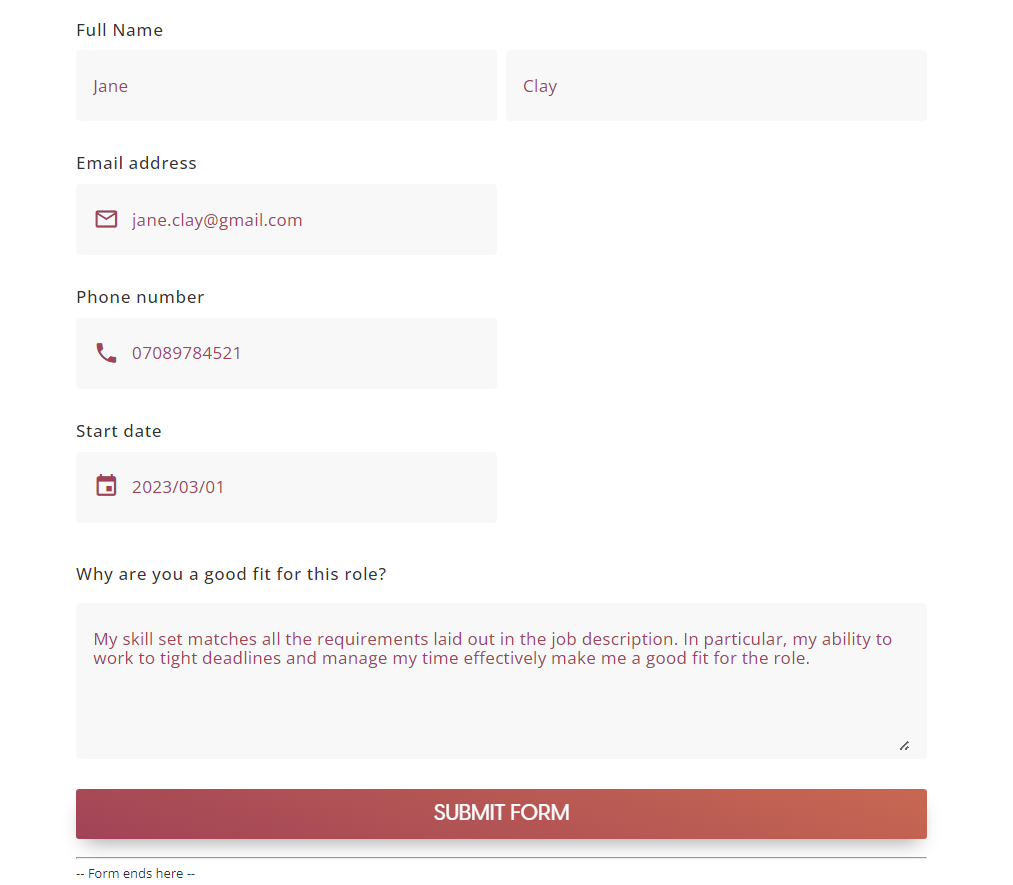
To complete a form, ensure all form elements have been filled in and click on the Submit Form button.
D,E & I Forms
These forms have the exact same layout and behaviours as other forms, however the main difference is that your answers on these forms cannot be accessed by anyone involved in the hiring process.
The data collected from these forms are used to analyse Campaign performance, and does not affect your application in any way.
File Upload
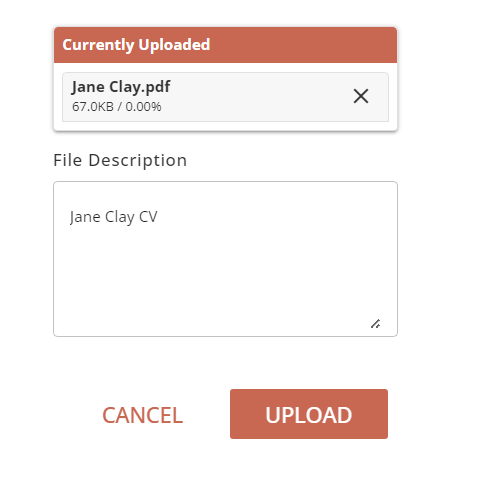
You may be required to upload files such as a CV, ID, proof of address etc. as part of your application. Details about the kind of file will be displayed on the application step. Clicking on the upload button will open the Upload File pop-up.
Clicking the “+” button on the “Upload a File” panel opens a file picker; allowing you to browse through your device for the correct file. After giving the file a description, click on Upload to confirm and upload your document.
Assessments
Assessments are multiple choice, timed quizzes used to assess your knowledge and abilities.
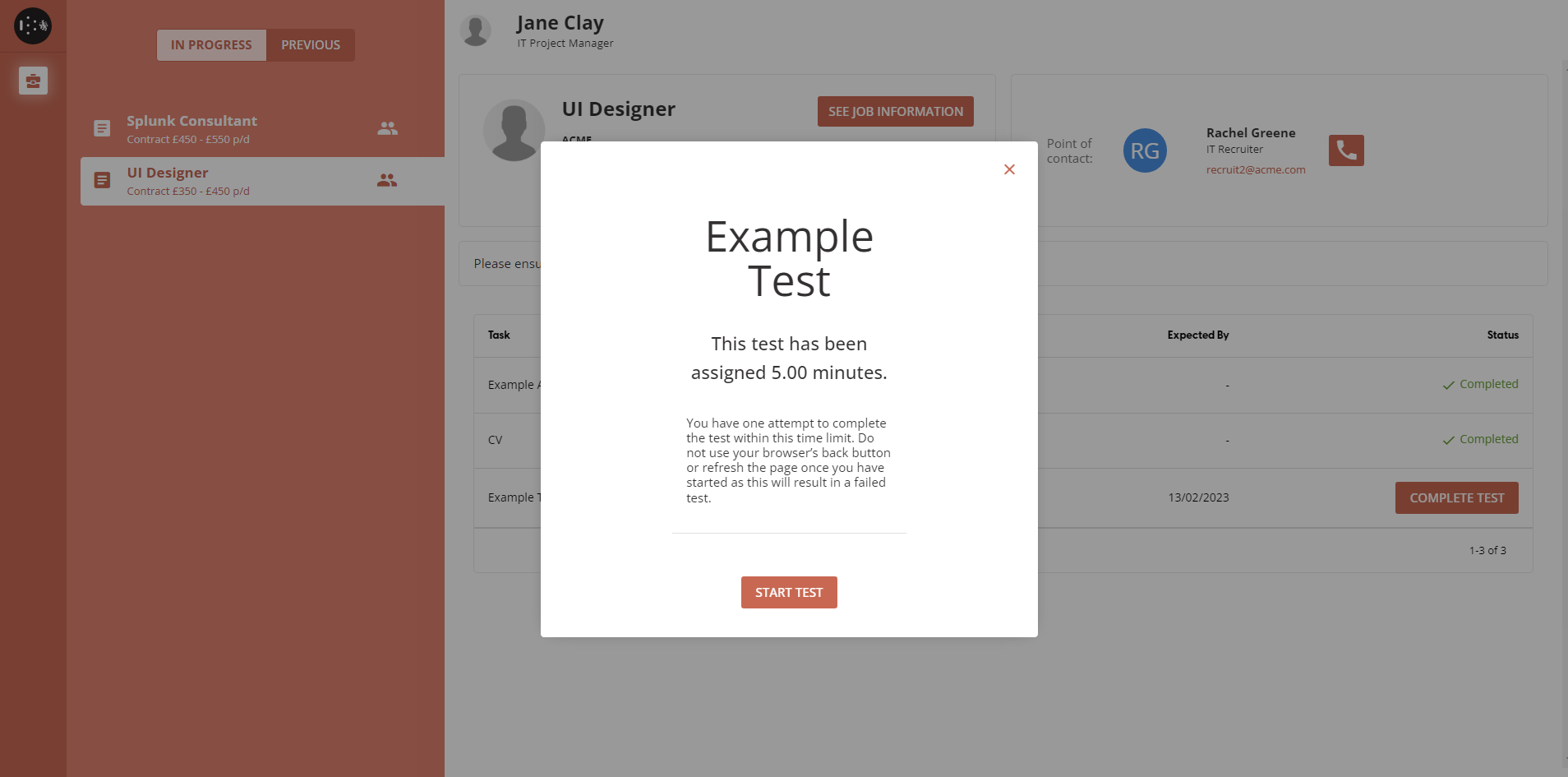
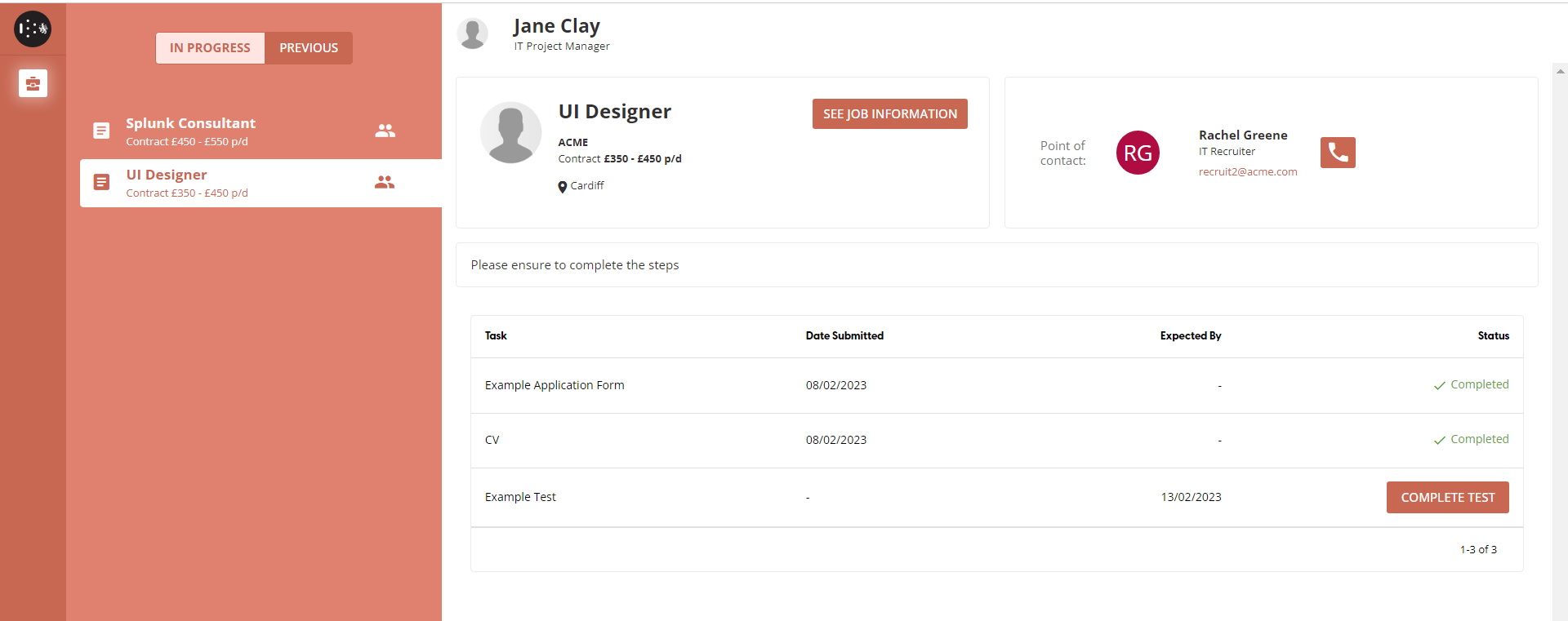
To start an assessment, and select “COMPLETE TEST“ to start the assessment. The name, amount of time available, and conditions of the assessment are shown to the applicant before they commit to starting.
The recruiter sets a time in which the test must be completed. If the applicant closes the test page, then the timer will pause until they return to the test.
Note: The applicant should not refresh the page or press their browser's back button, as this will result in a failed assessment.
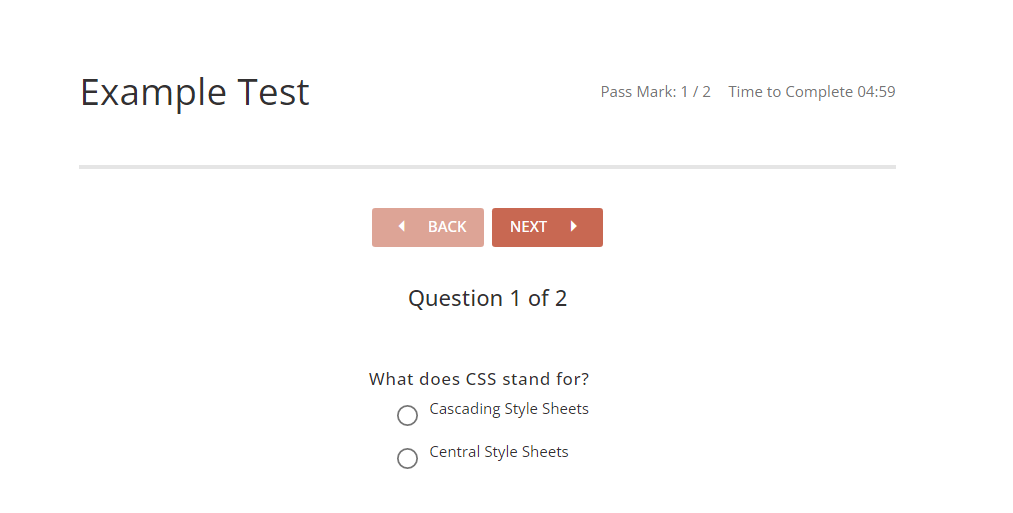
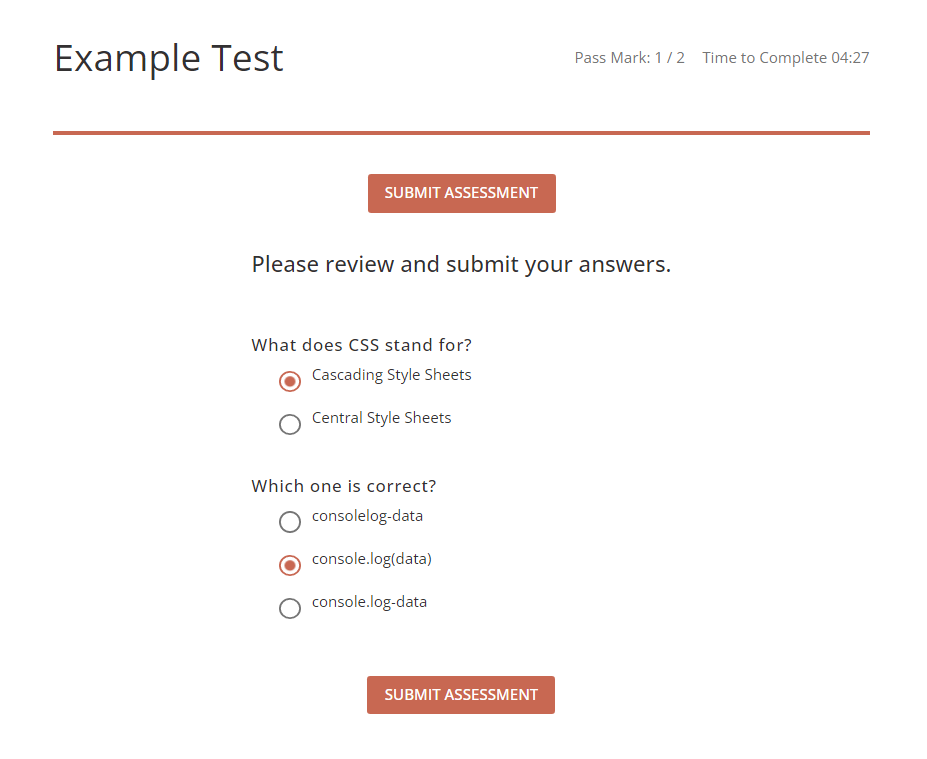
When all questions have been answered, the applicant is given a chance to review their answers before submitting the assessment providing they have time to spare. They can also revisit previous question pages if they would like to change their answer, but once they reach the review page at the end they can’t go back to a previous page.
When the “Submit Assessment” button is selected the assessment answers will be sent for review. The applicant must wait for recruiter approval before continuing with their application.
Interviews
See more information on the Attending an Interview - Applicant page.
Waiting to Progress
There will be stages where the applicant must have their tasks manually reviewed by a recruiter in order to progress. At this point the status “Waiting for Recruiter“ will be displayed.
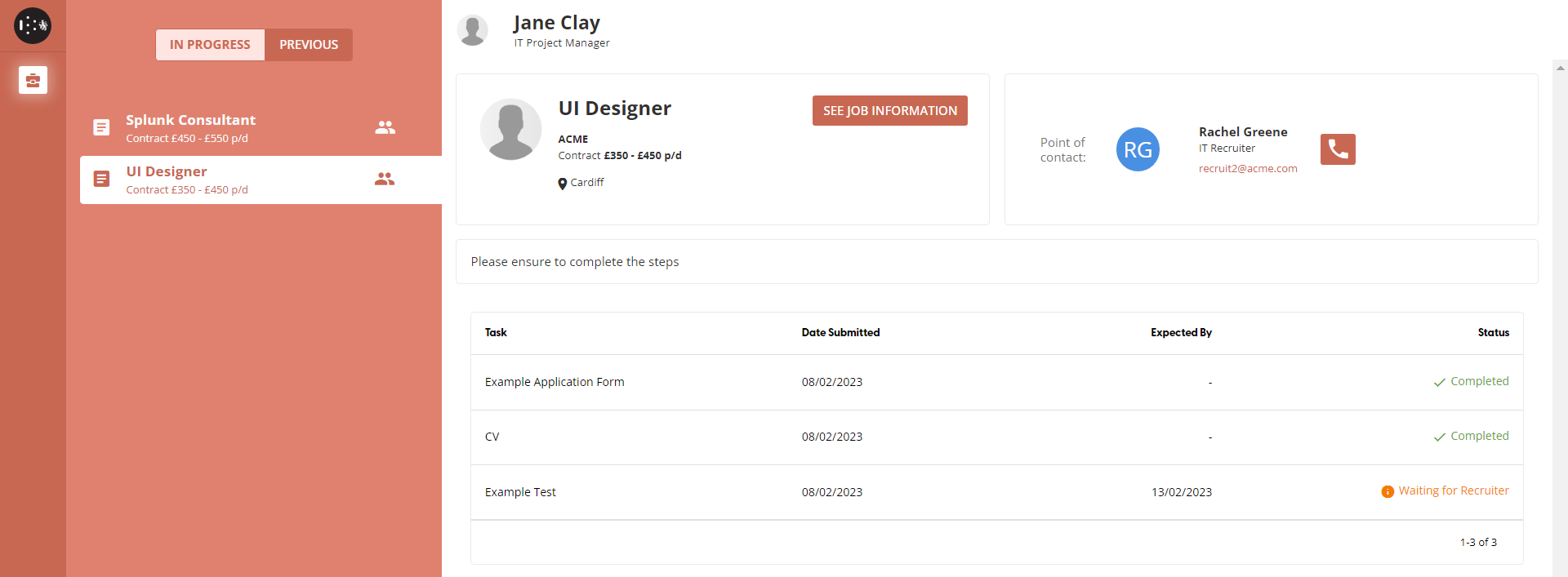
When a recruiter has approved their tasks an email will be sent to the applicant, inviting them to the next stage. The applicant can then return to the portal and continue completing tasks.
Withdrawing from the process
If you wish to withdraw from the hiring process at any stage, you can click on the Withdraw Application button to begin the process.
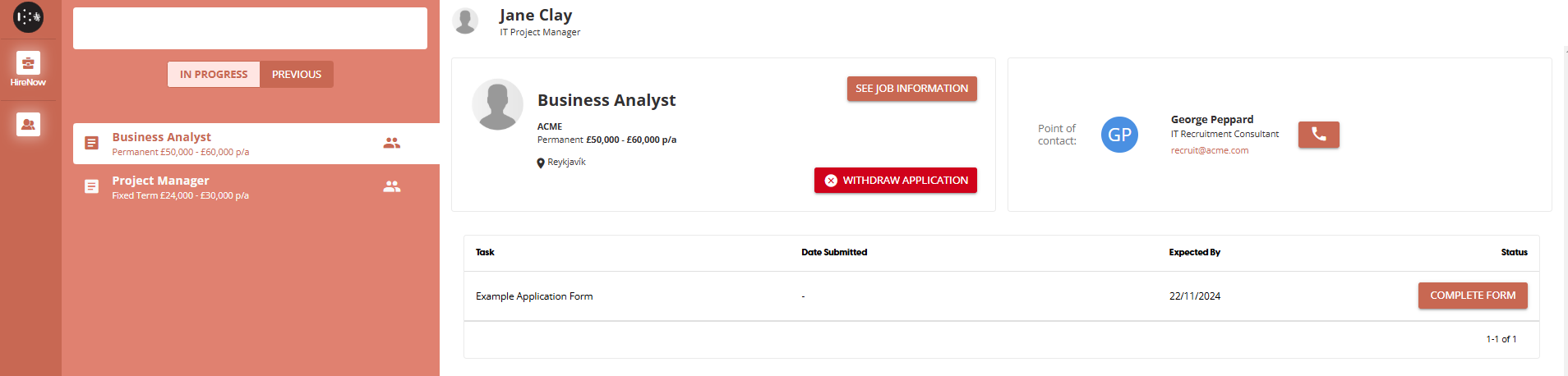
Once you have clicked on the button, you are required to give a reason for withdrawing the application. There are some pre-defined reasons provided, but there is also an 'Other...' option which will let you enter any reason. Once you have selected a reason, click on Confirm and your application will have been withdrawn.
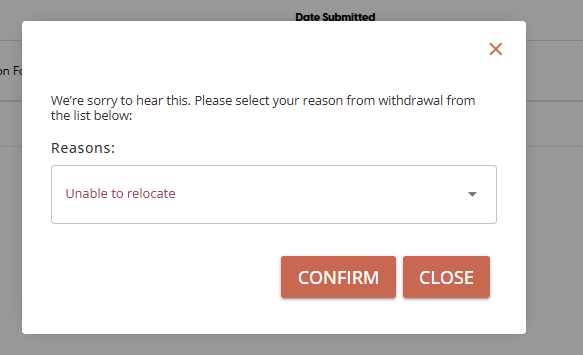
If at any point you wish to continue with the application, please press cancel. If you have withdrawn your application and wish to reverse that action, contact us at support@skillsnow.com