Course Navigation and Track progress
LearnNow Portal > Learning Queue
LearnNow Portal > Current Course
Description
As a company employee, I want to be able to access assigned courses.
Applicable User Roles
List of roles that have access or can use this feature.
Employee
Team Leader
Team Member
How To
Starting a Course
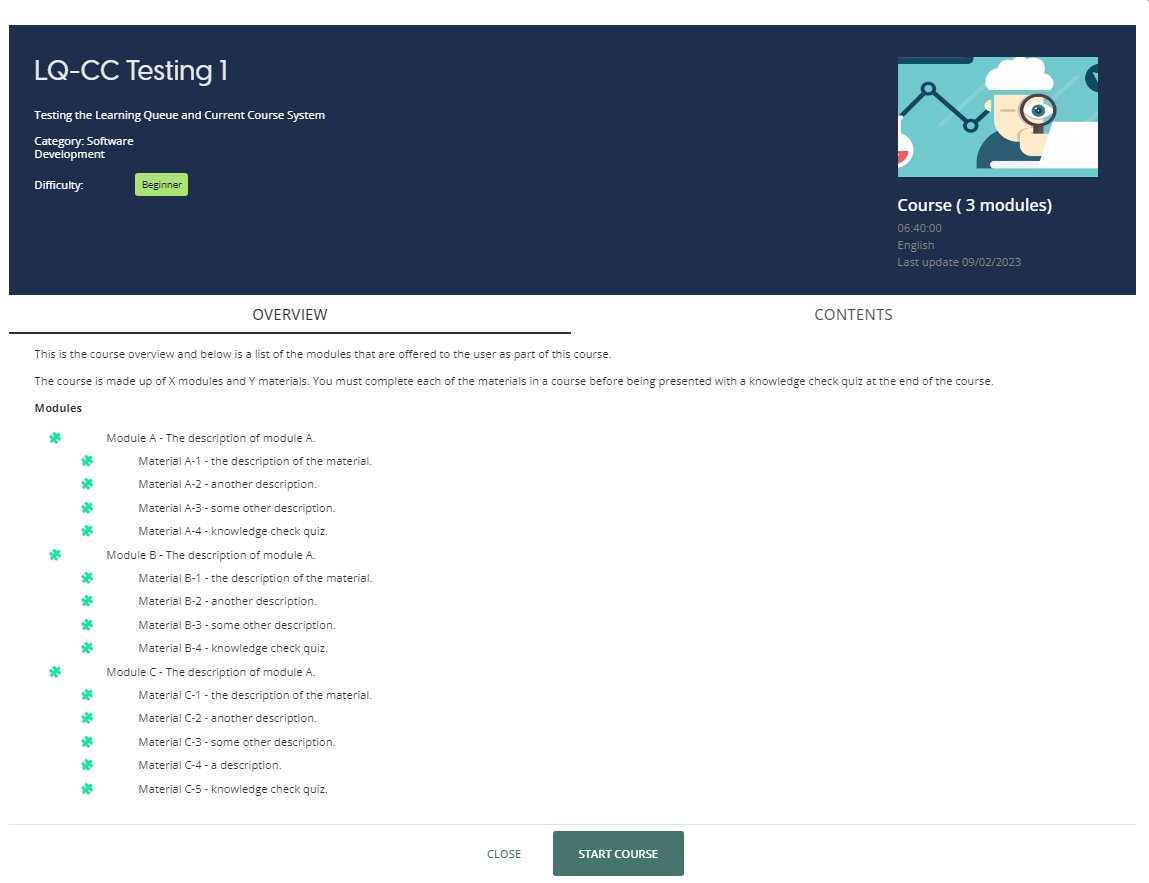
Once you have decided on the course you wish to start, you can start the course by clicking on the courses name from the list. Once you do this, the course overview window will open and you will be able to see the course description and the contents of the course.

From this window, you can press the “Start Course” button which will make this course your current course and take you the current course page where you can start to make progress on the material.
If the course does not have a “Start Course” button it may have been unpublished. Speak with your team leader to find out more details.
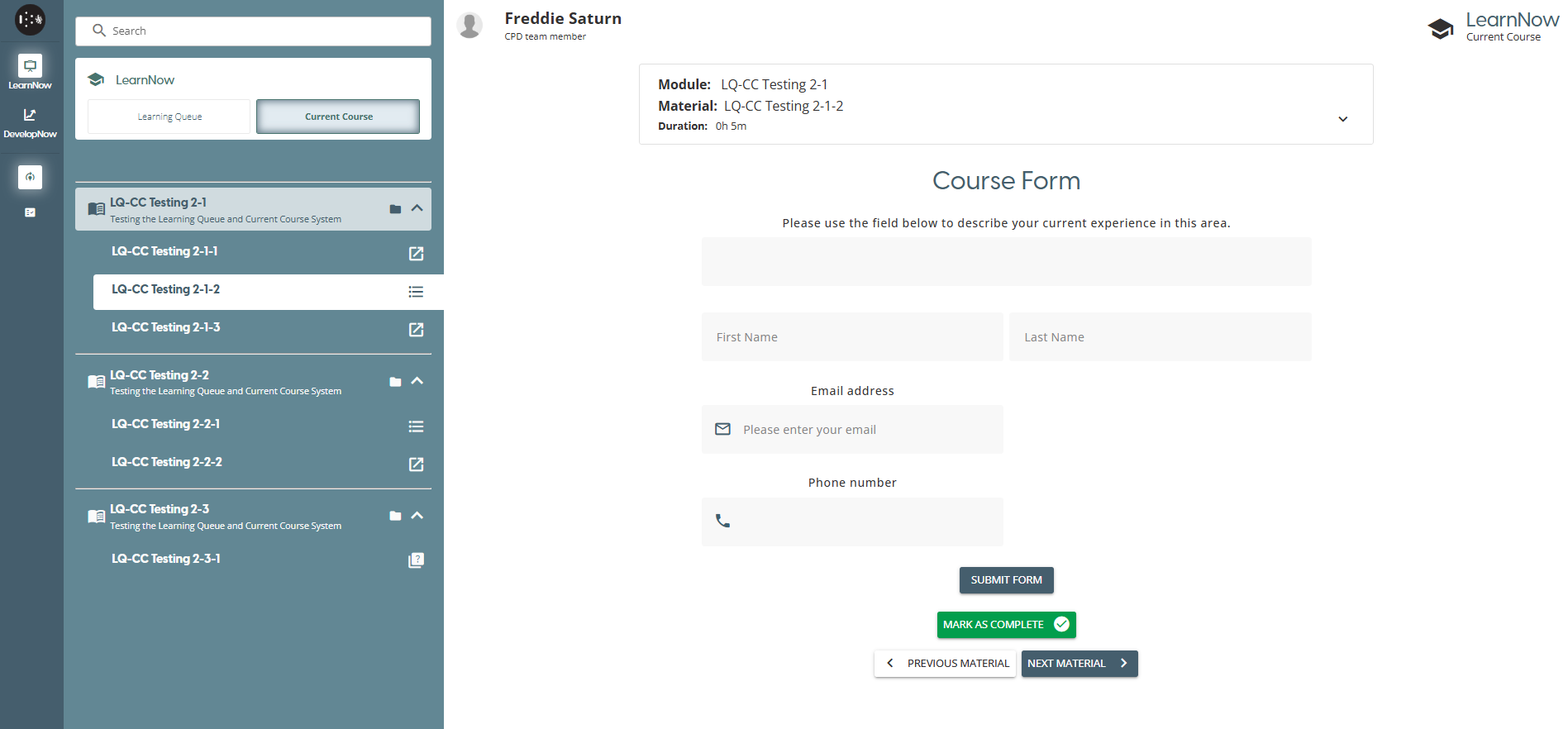
Depending on the type of material, each page will display different elements. Each material will have the option to mark it as complete once you have finished the material or navigate to the next material using the navigation arrows. Once a material or module is completed, it will appear in the Navigation menu with a green tick icon.
Tracking Progress and continuing a course in progress
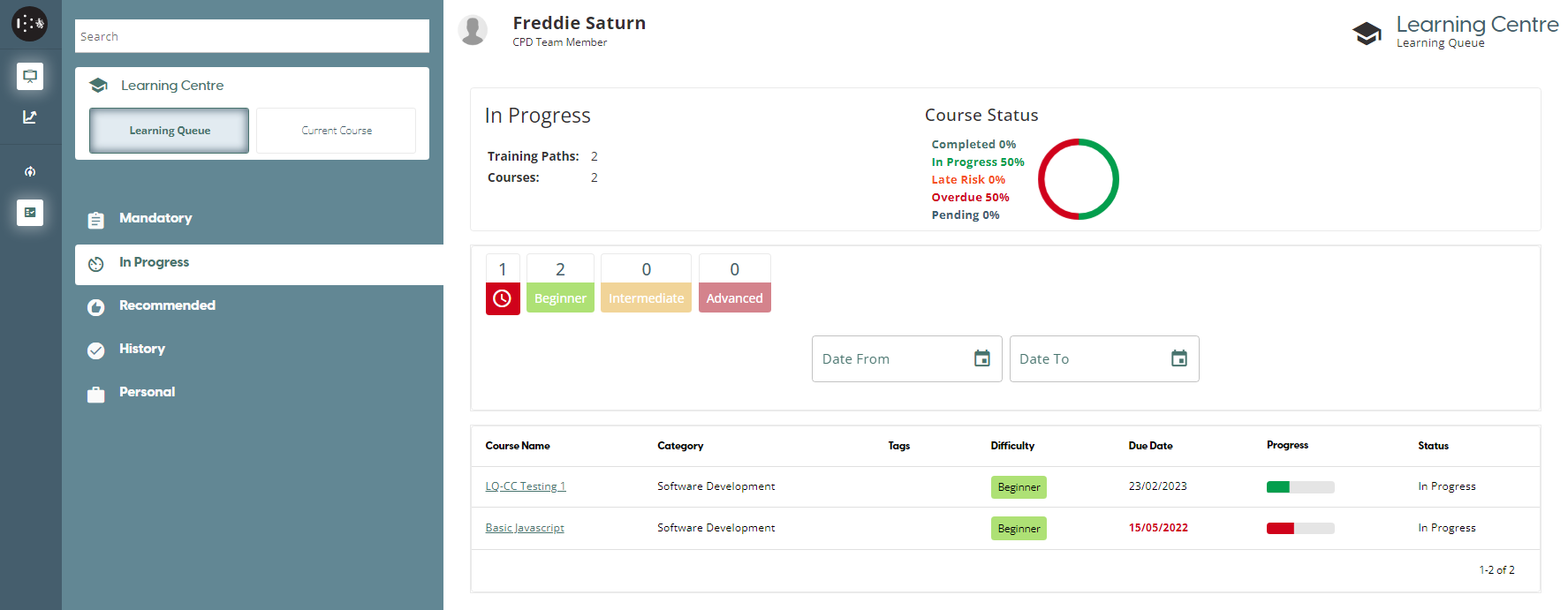
The platform gives you ability to start a course and finish it at a later date. Your progress on the course is automatically saved when you complete a material. If you have started a course, it will appear in the In Progress list in the learning queue view. You can see how much progress you have made on the course via the Progress bar.
‘Recommended’ courses are set by the user’s Team Leader, but they are optional opportunities for further learning. The user can view previously completed courses in the ‘History’ tab.
In order to continue the last course you were working on, pressing the “Current Course” button will take you the first uncompleted material available from that course.