Proof of Completions Upload
LearnNow Portal > Current Course
Description
As a company employee and team member when I have an external course in my assigned learning, I want to be able to upload a proof of completion.
Applicable User Roles
List of roles that have access or can use this feature.
Employee
Team Leader
Team Member
How To
Another new feature introduced in this release is the ability to upload documents against courses or materials as proof of completion. Currently this feature is only available on external courses or external materials.
Uploading proof of completion – External course
Once a user has finished an external course, they can check the course as completed and will be presented with a Save button to save their progress.
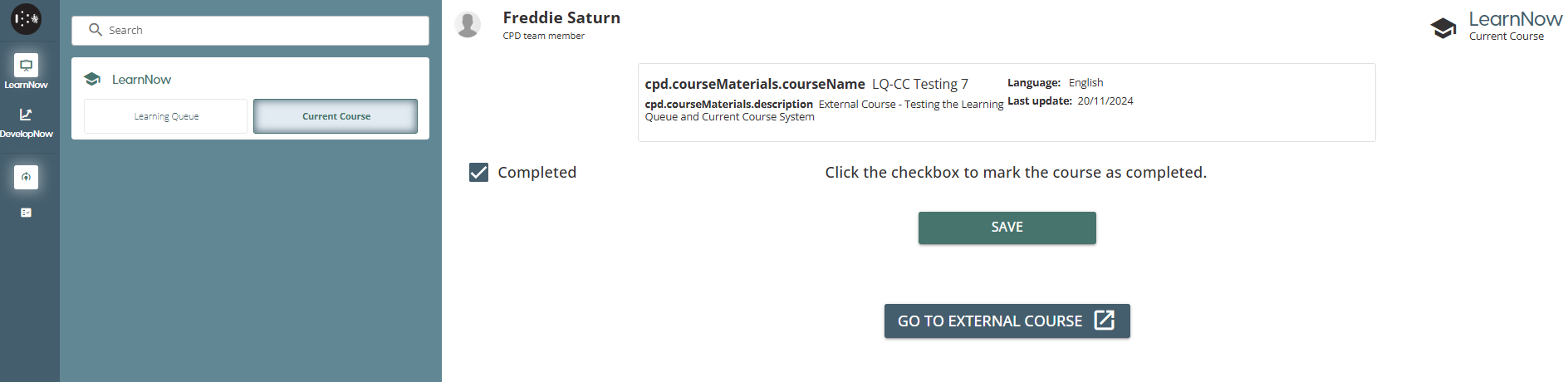
After clicking the Save button, the Upload Proof of Completion button will then be visible on the course or material page. If it does not appear, please try refreshing the page.
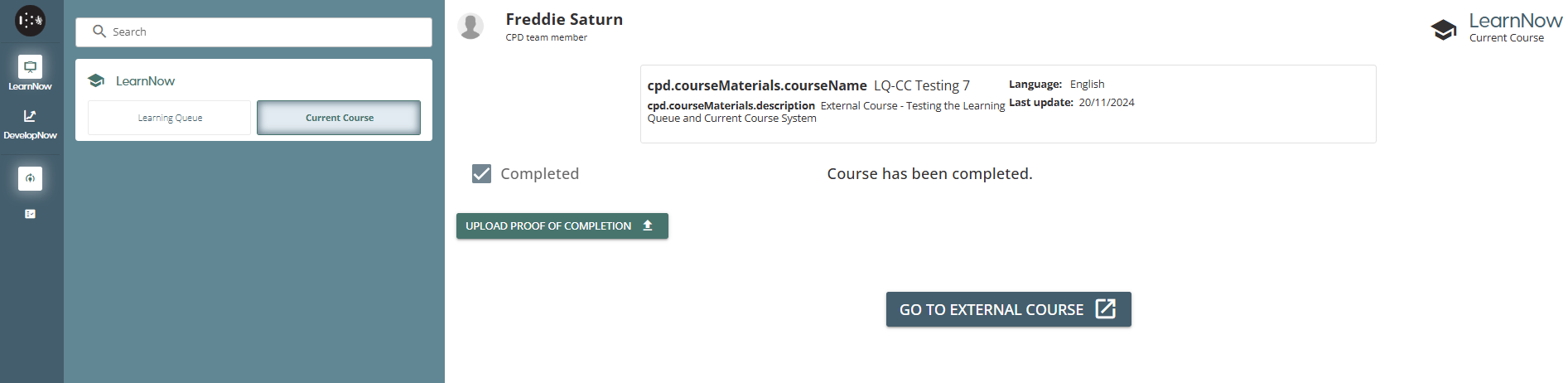
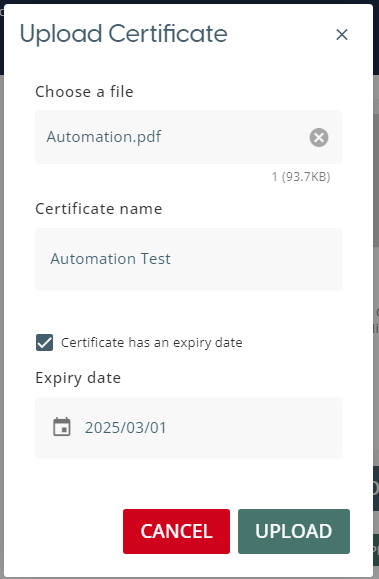
This will open a pop-up window which allows the user to select a file from their device to attach to the completed course. The certificate name field dictates how the file will appear to others when they viewing or downloading the item.
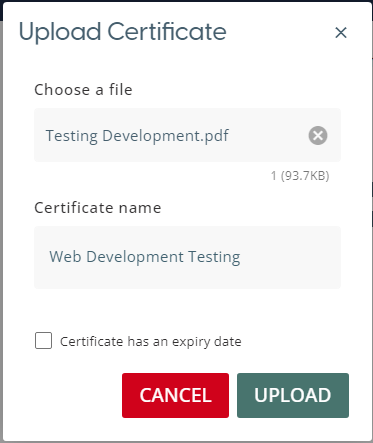
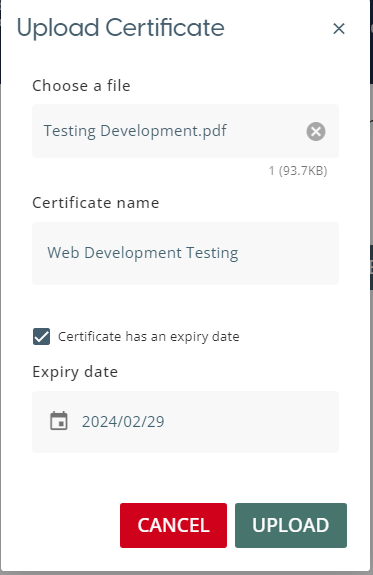
Clicking on the expiry date checkbox will add a date field which allows the user to add an expiry date to the certificate
Note: The document will not be removed when the expiry date passes. Out of date certificates need to be replaced manually.
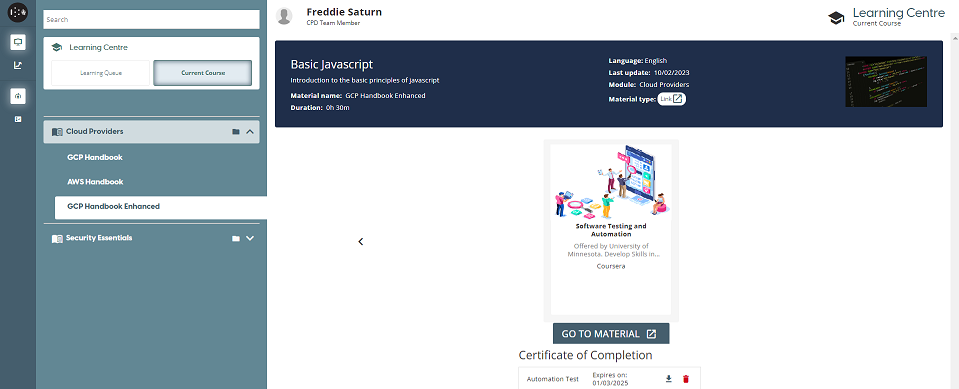
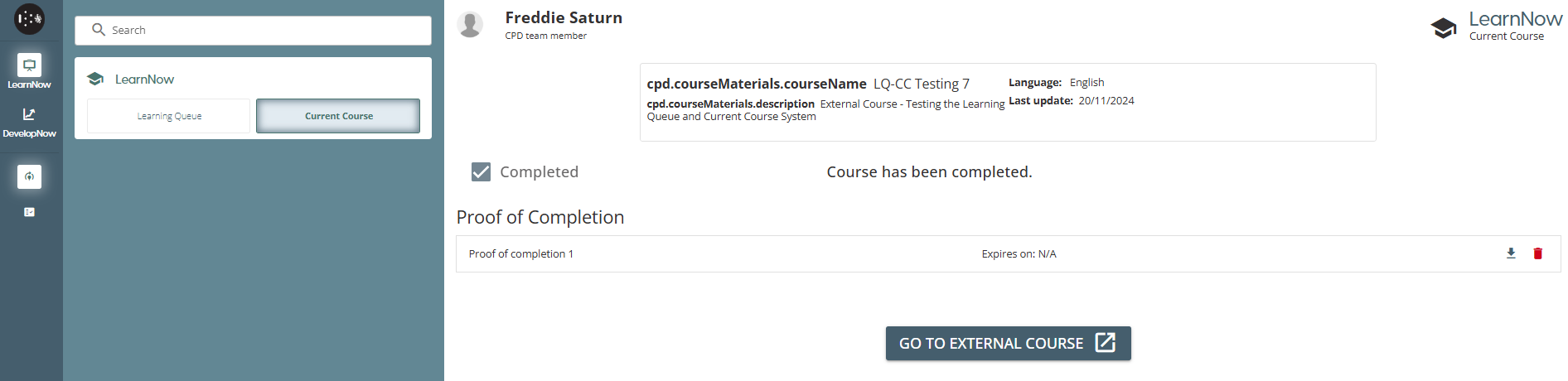
Once the user then clicks on upload, they will see a new section on the completed course page that displays then uploaded certificate and its expiry date. The icons allow the user to then download a copy of the certificate or to delete it.
Uploading proof of completion – External material
Proof of completion can also be uploaded against an external material within an internal course. Once an external material has been marked as complete, then on visiting the page again there will be a ‘Upload Certificate’ button
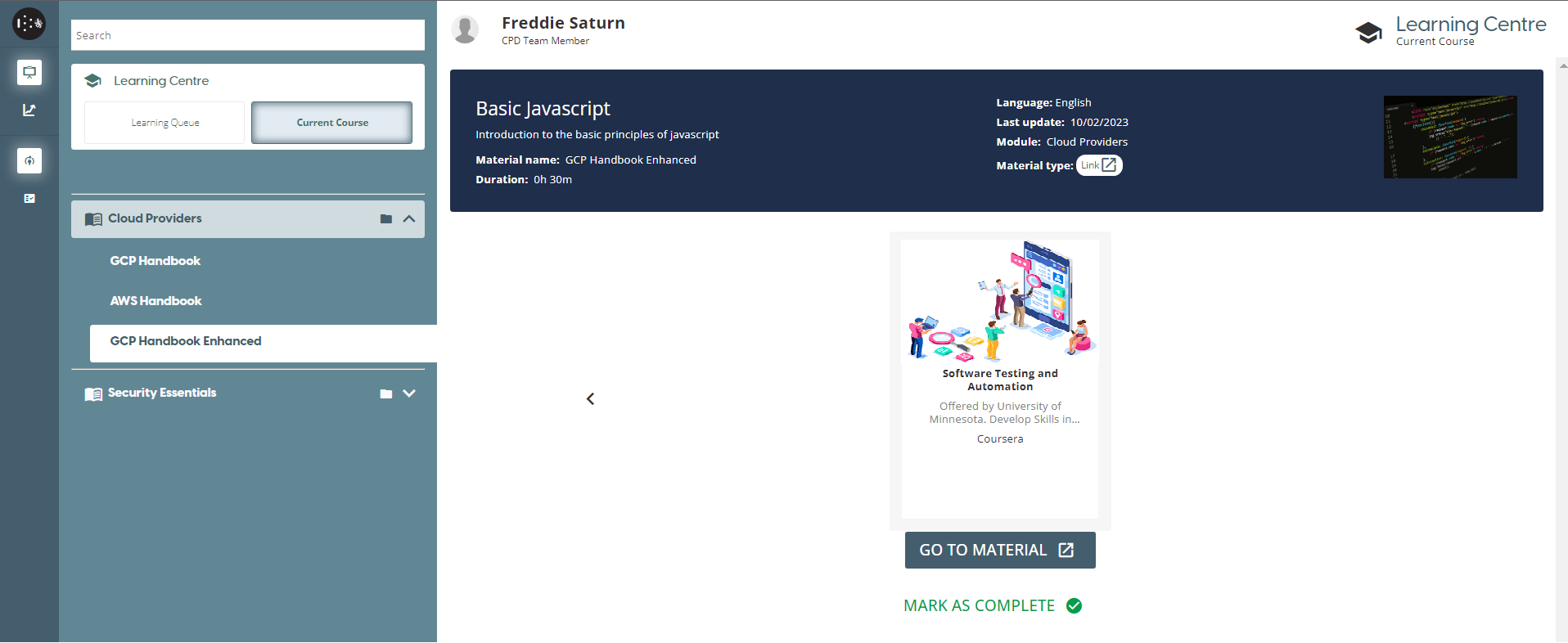
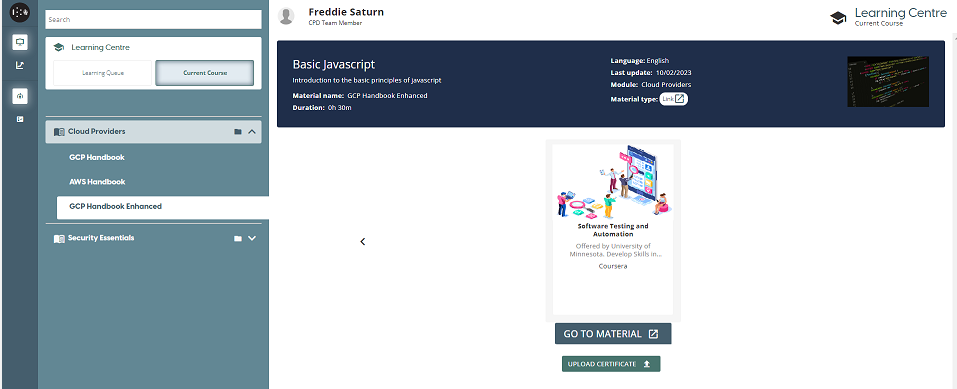
This will open a pop-up window which allows the user to select a file from their device to attach to the completed material. The certificate name field dictates how the file will appear to others when they view or download the file. This window also allows for an expiry date to be added by selecting the ‘Expiry Date’ checkbox.
This certificate will then appear on the material page, where there are icons which allow for the document to be downloaded or deleted.