How to assign learning to yourself
DevelopNow Portal > Personal Development
Description
As a team member, I want to be able to assign learnings to myself
Applicable User Roles
List of roles that have access or can use this feature.
Employee
How To
All employees have access to the Personal Development page in the DevelopNow portal. Here, they can see their assigned learning, check the progress of their recommended &mandatory training, and review any outstanding or previous review processes.
Any employee who has access to the Personal Development page also has the ability to assign learning to themselves. This allows you to select any learning to complete outside of what has already been assigned to you. Any learning added this way will automatically be put into the Personal learning queue, and cannot be assigned a due date.
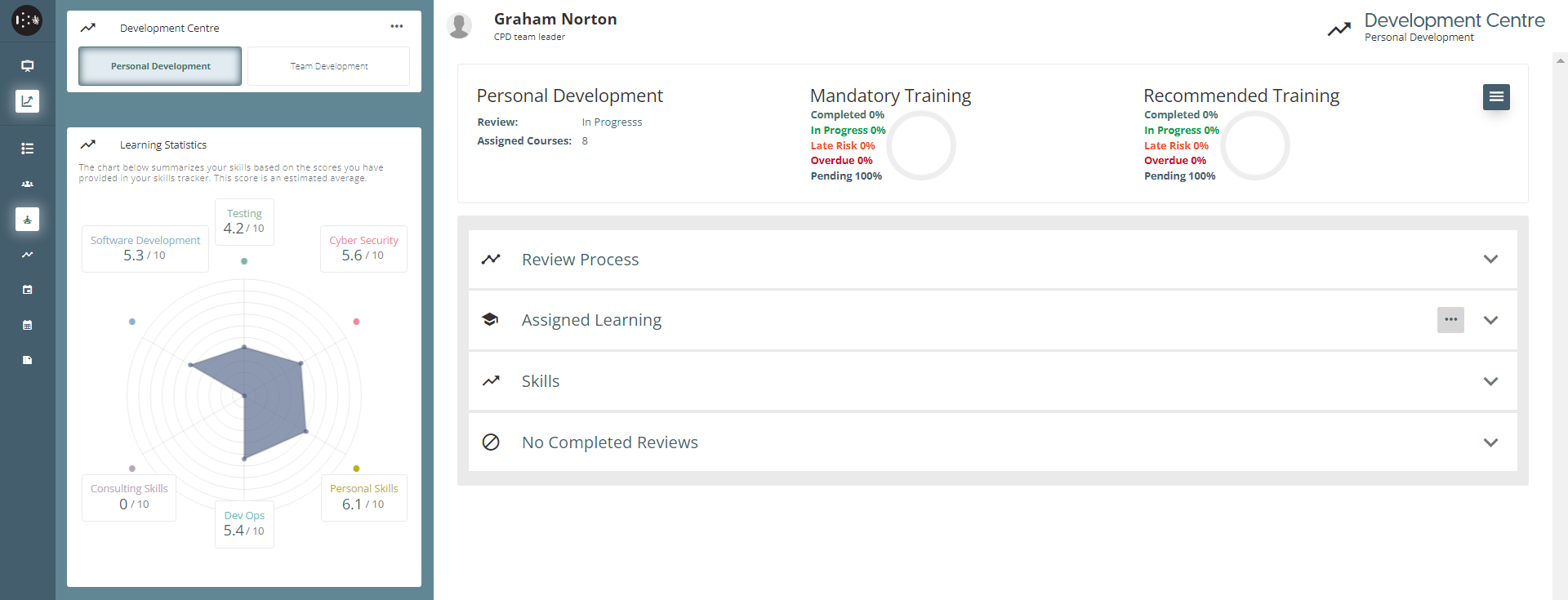
How to assign Personal Learning
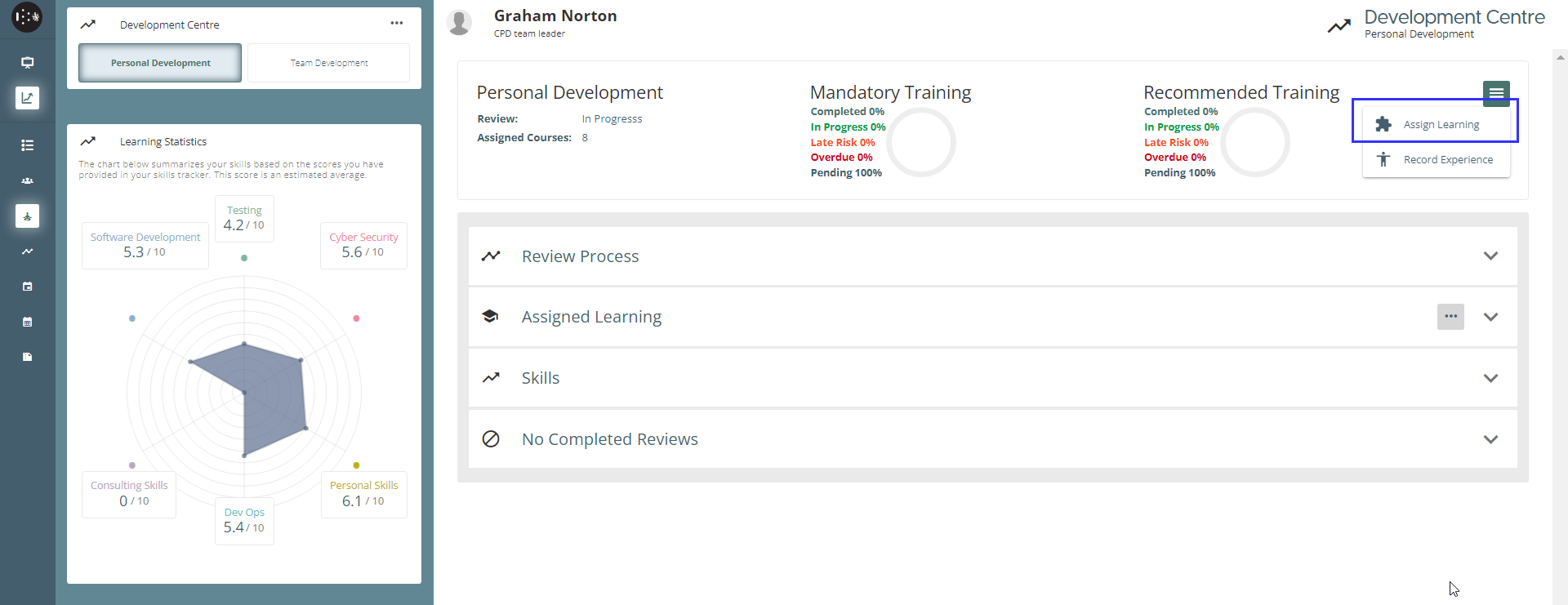
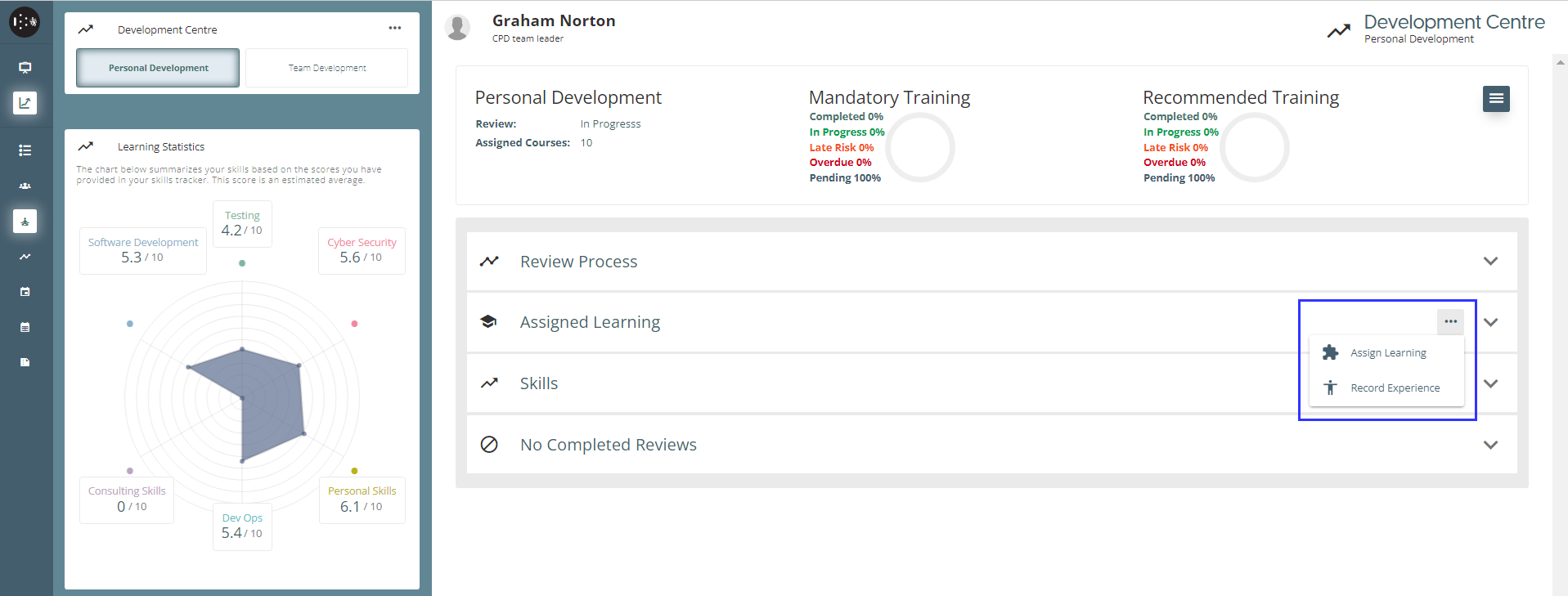
From the Personal Development page, you have the option to assign personal learning to yourself from the courses and training paths available on the platform. The first step is to click on the burger menu and select Assign Learning.
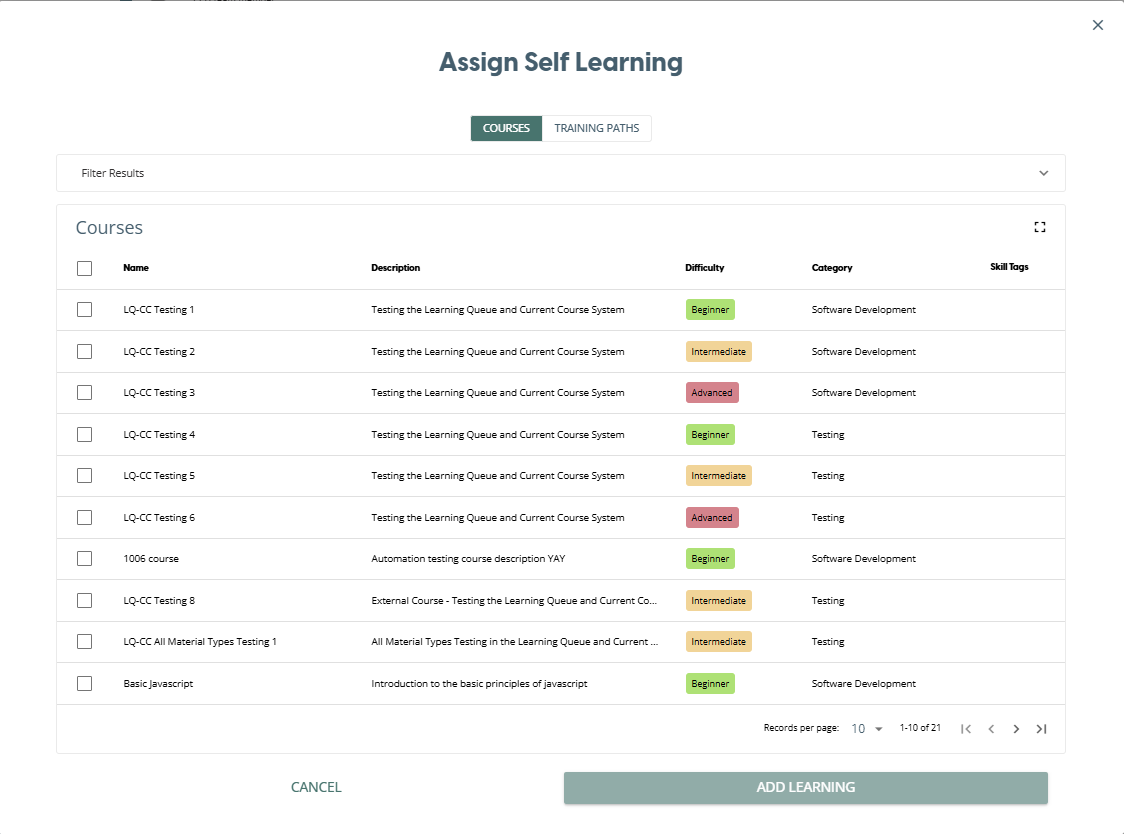
This opens the Assign Self Learning window. This window displays a list of courses that can be assigned to your personal learning queue. You can filter the results shown by clicking on the Filter results element, which gives you different attributes to filter the courses by. To select a course, just click on the checkbox it will have a tick to show it is currently selected.
Clicking on the Training Paths button will display a list of published training paths to select from. Click on the checkbox next to the path you wish to add to select it.
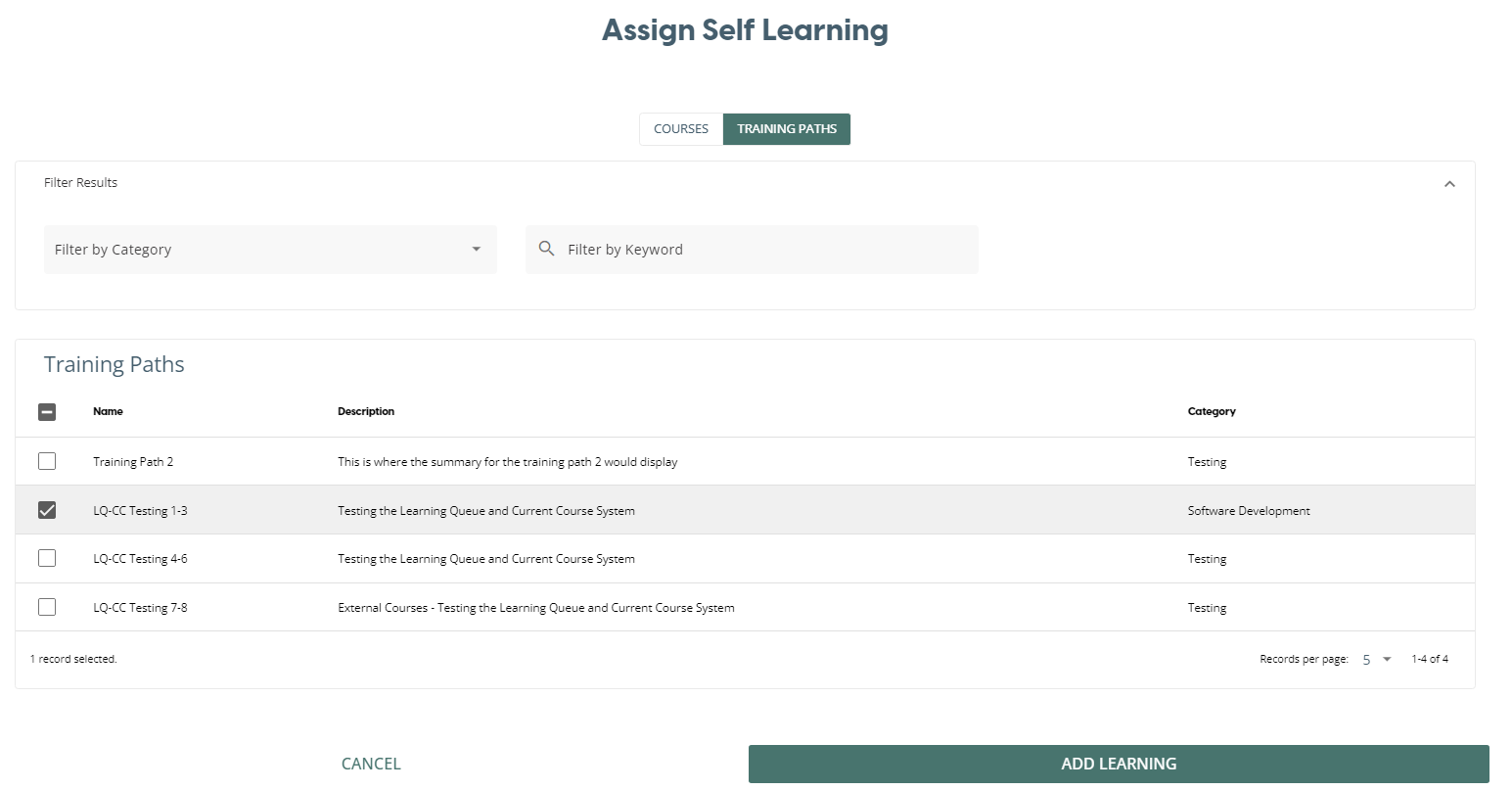
Once you are finished with your selections, press the “Add Learning” button at the bottom of either view to add the items to your Personal learning queue.
As these are personal learning goals, they cannot be assigned mandatory or recommended status and no due date can be assigned to them.
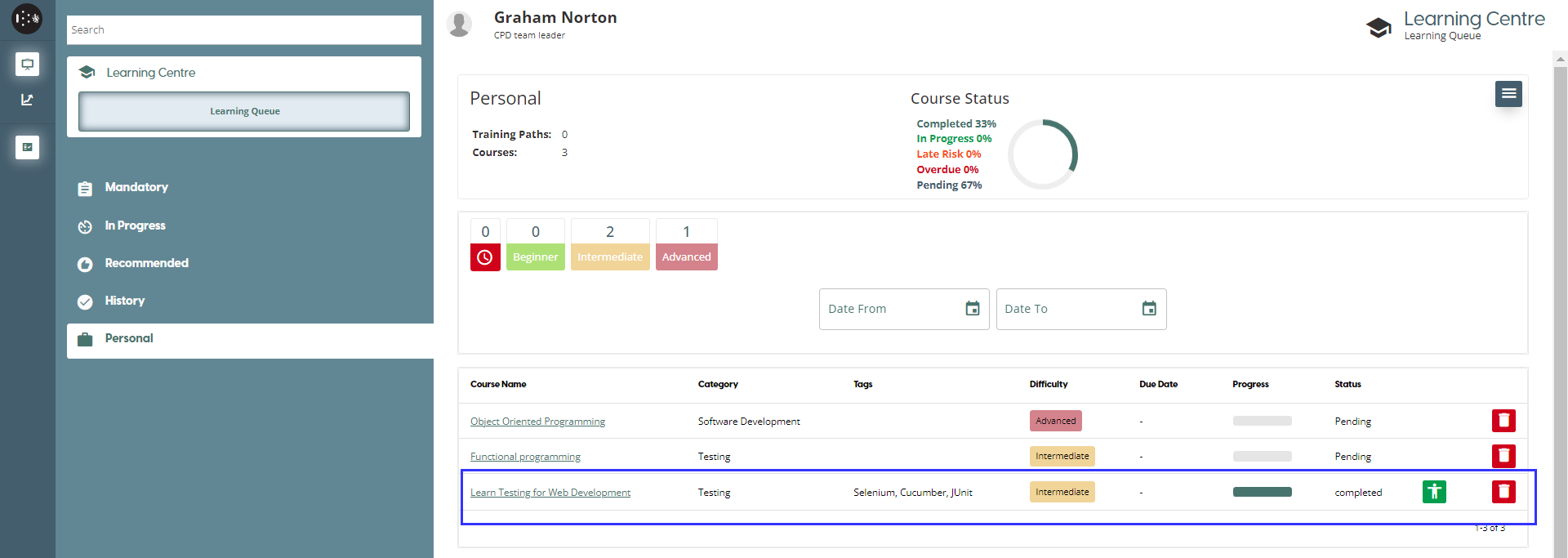
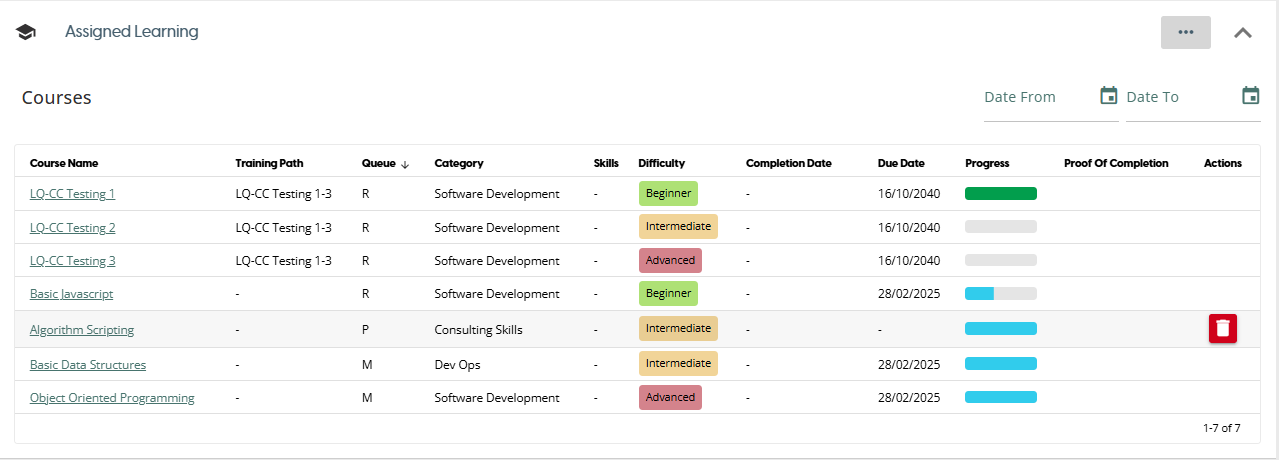
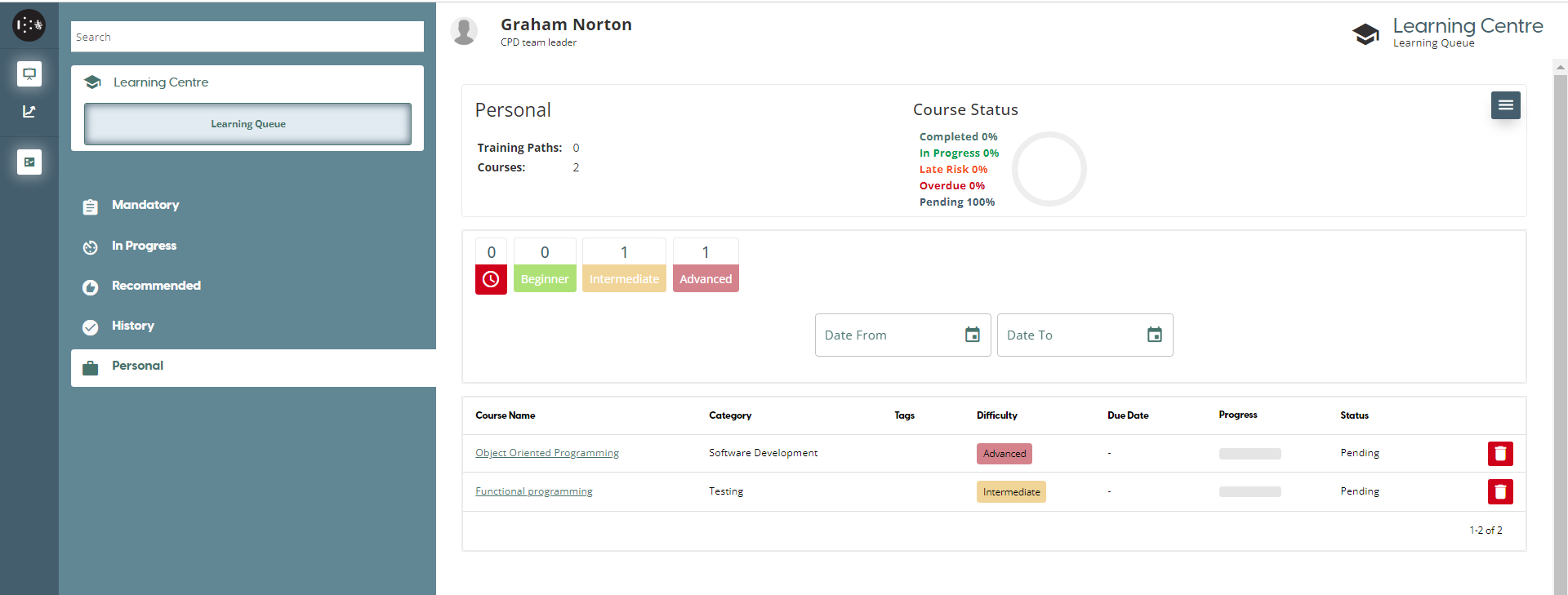
The Training Paths and courses you have added can be seen in your Assigned Learning list on the Personal Development page, or in the Personal Learning Queue in the Training Portal.
How to record a Personal Learning Experience
The platform also allows you to record any personal learning you have done outside of the platform. From the Personal Development Page, you need to press the ellipses “…” button next to the Assigned Learning header and select the Record Experience option.
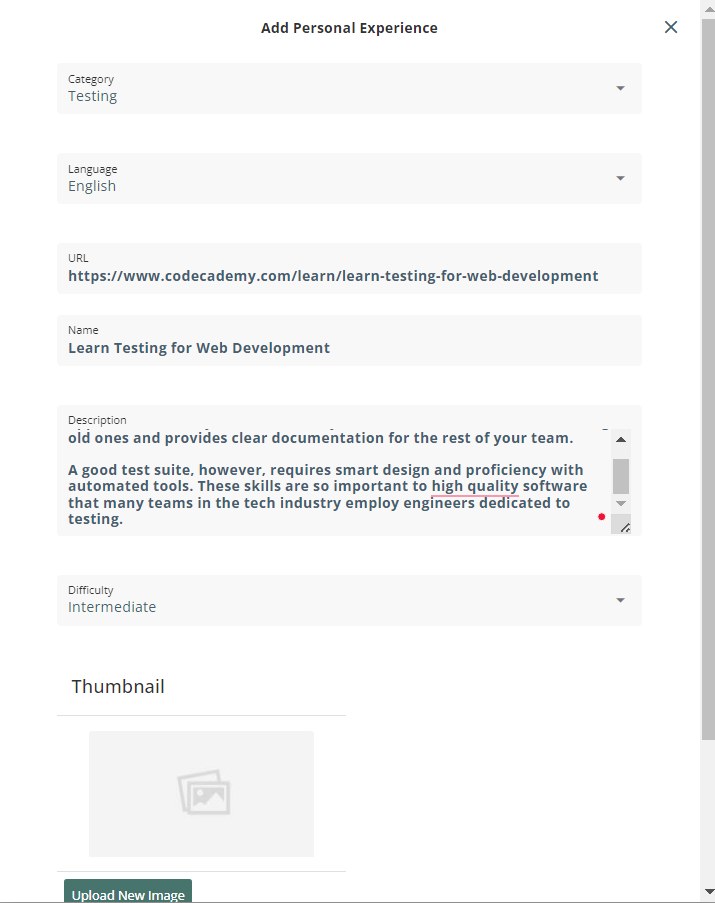
This will bring up the Add Personal Experience form where you are able to fill in details about your personal experience. The fields are:
- Category: Select the most suitable category from a list of categories provided. A required field.
- Language: The language the material was conducted in. A required field.
- URL: Provide a link to the material covered if possible.
- Name: Add a title to your record of personal experience. A required field.
- Description: Add a more detailed description of what was covered in your personal experience record.
- Thumbnail: Attach an image to your record.
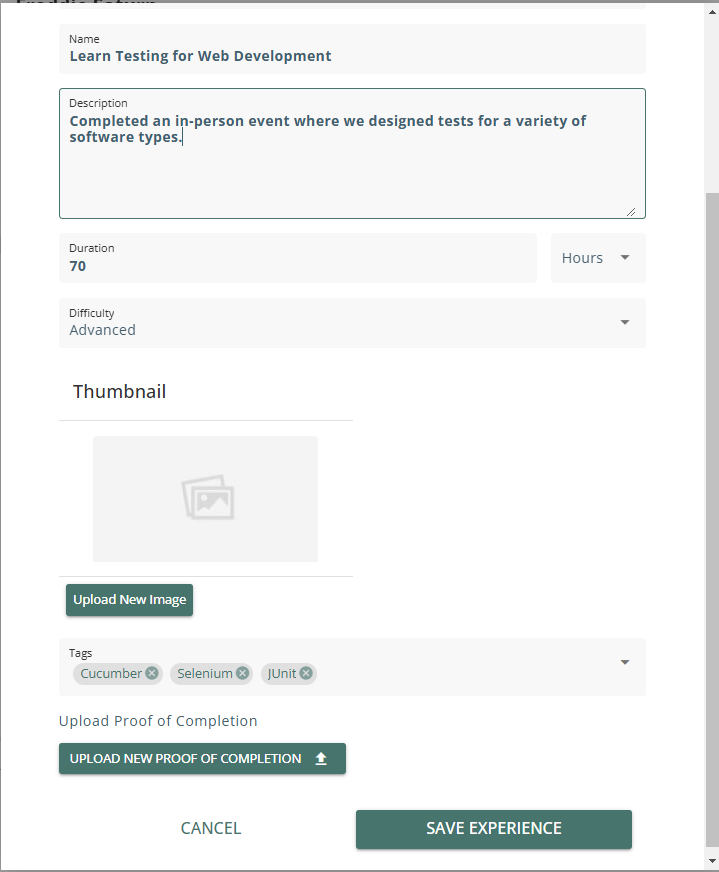
- Proof of completion: Attach a document to the Personal Experience as evidence of the experience.
- Tags: Add tags to the record related to the category you have selected for the record.
When you are ready to submit the record, scroll to the bottom of the window and press the “Save Experience” button. This will add your record to your assigned learning list.

The record can also be seen if you go to the Training Portal and go to your Personal learning queue. The record can be further edited from here by pressing on the green man icon, which will bring up the Edit Personal Experience window again to update the record. Any personal learning can also be removed using the red “bin” button.