How to Bulk Assign Learning
DevelopNow Portal > Team Development > Bulk Assign Learning
Description
As a CPD, I am able to assign learning to many users at once.
Applicable User Roles
List of roles that have access or can use this feature.
CPD Admin
How To
Navigate to the Bulk Assign Learning page
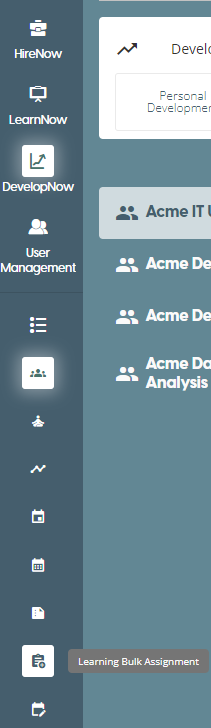
To access the Learning Bulk assignment page, you must be logged in with the CPD admin role. If you have this, you will see the Learning Bulk Assignment icon in the navigation icons.
How to bulk assign learning to individuals
Once you click on the Learning Bulk Assignment icon, you will be navigated to the Assign to Individuals page. This page allows you to select any number of individuals within your company to assign learning to.
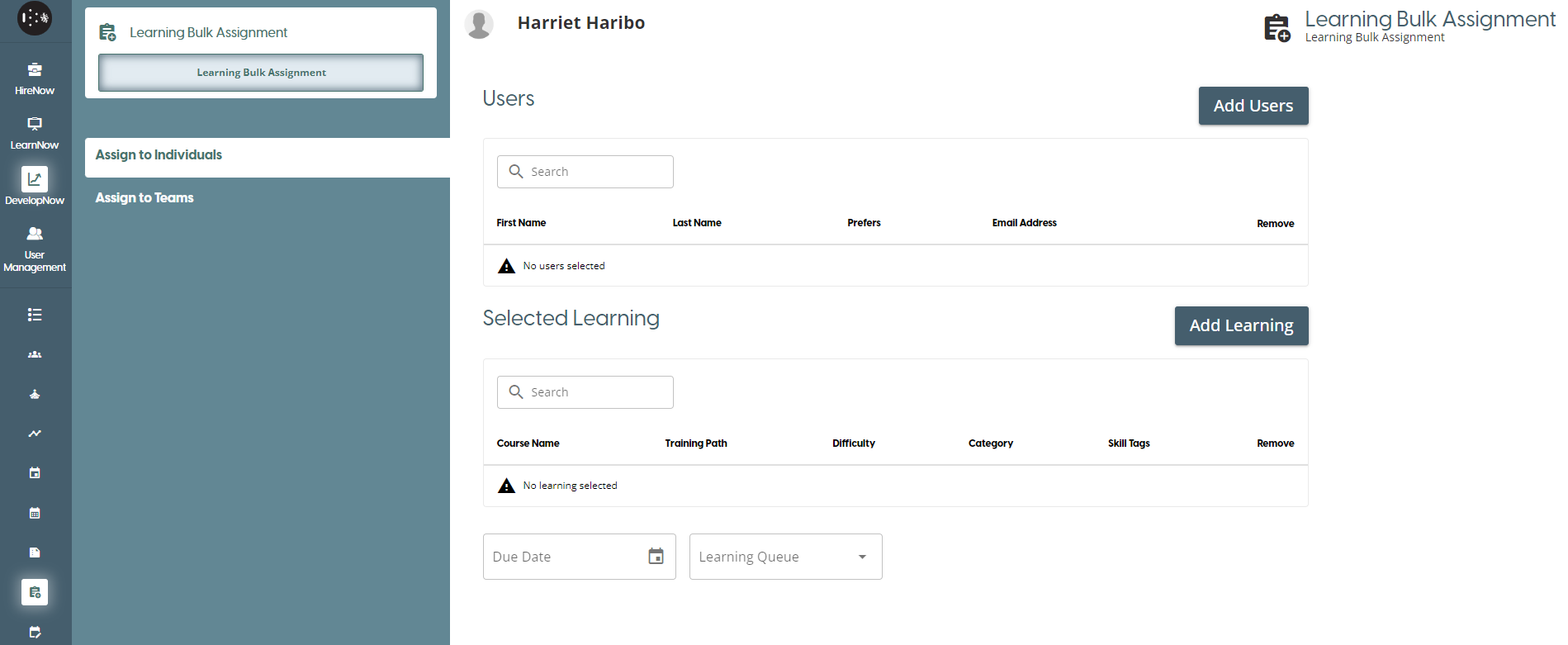
The first step is to select the users you want to assign learning to. Click on the Add Users button to open the user list.
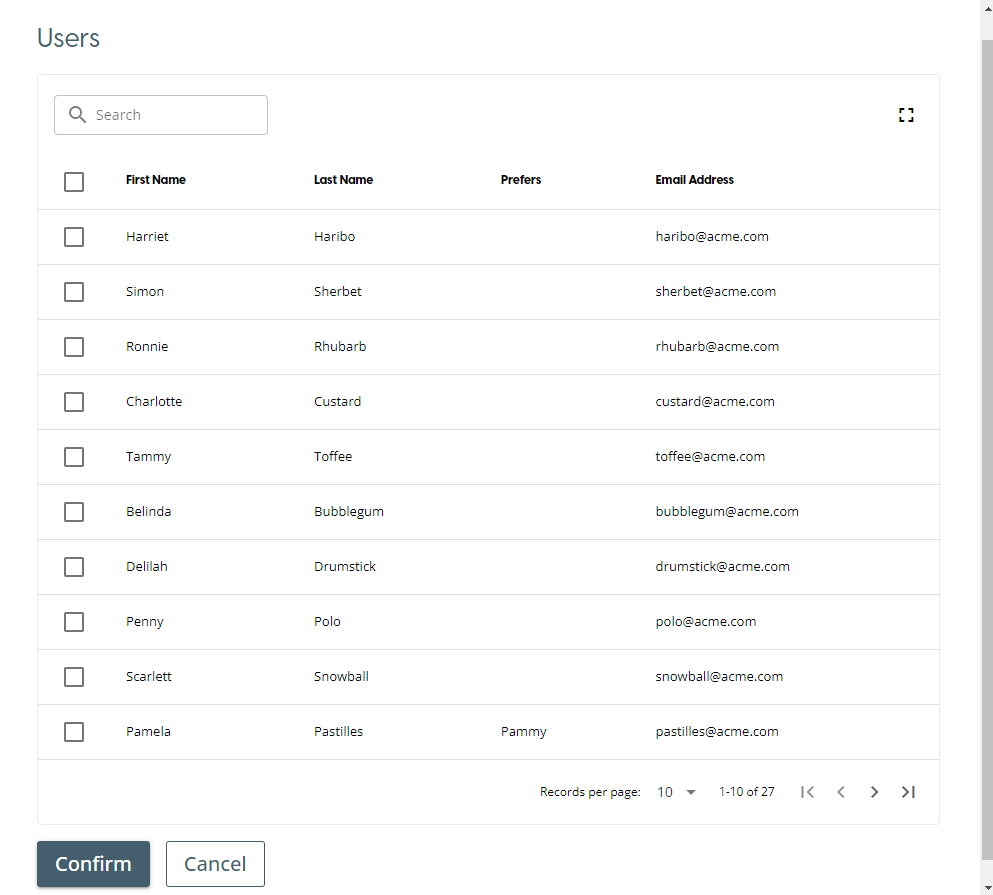
To select a user, click on the checkbox next to the users name. You can select any number of users from the list. If you wish to search for a particular user, you can use the search bar in the window to search via first name, surname, preferred name or email address. Any previous selected users will persist through the search process. Once you have finished selecting users, click on the Confirm button to close the window and add the users to the Users list.
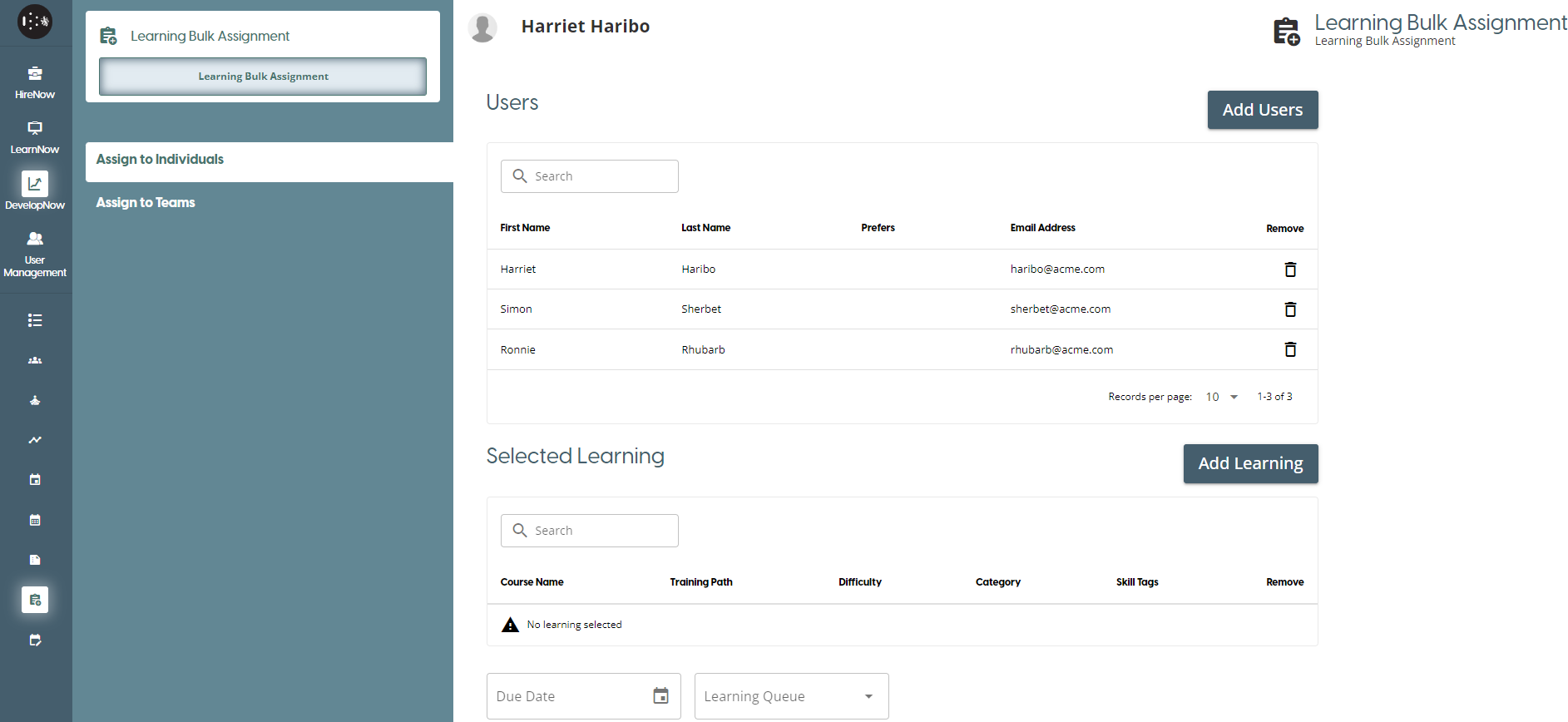
To select the learning you wish to assign, click on the Add Learning button to open the Assign Learning window.

In this window you can select both courses or training paths to assign to individuals. To switch between the two options, click on the respective tabs. You can also filter the results by clicking on the Filter Results section, which provides various fields to filter the lists.
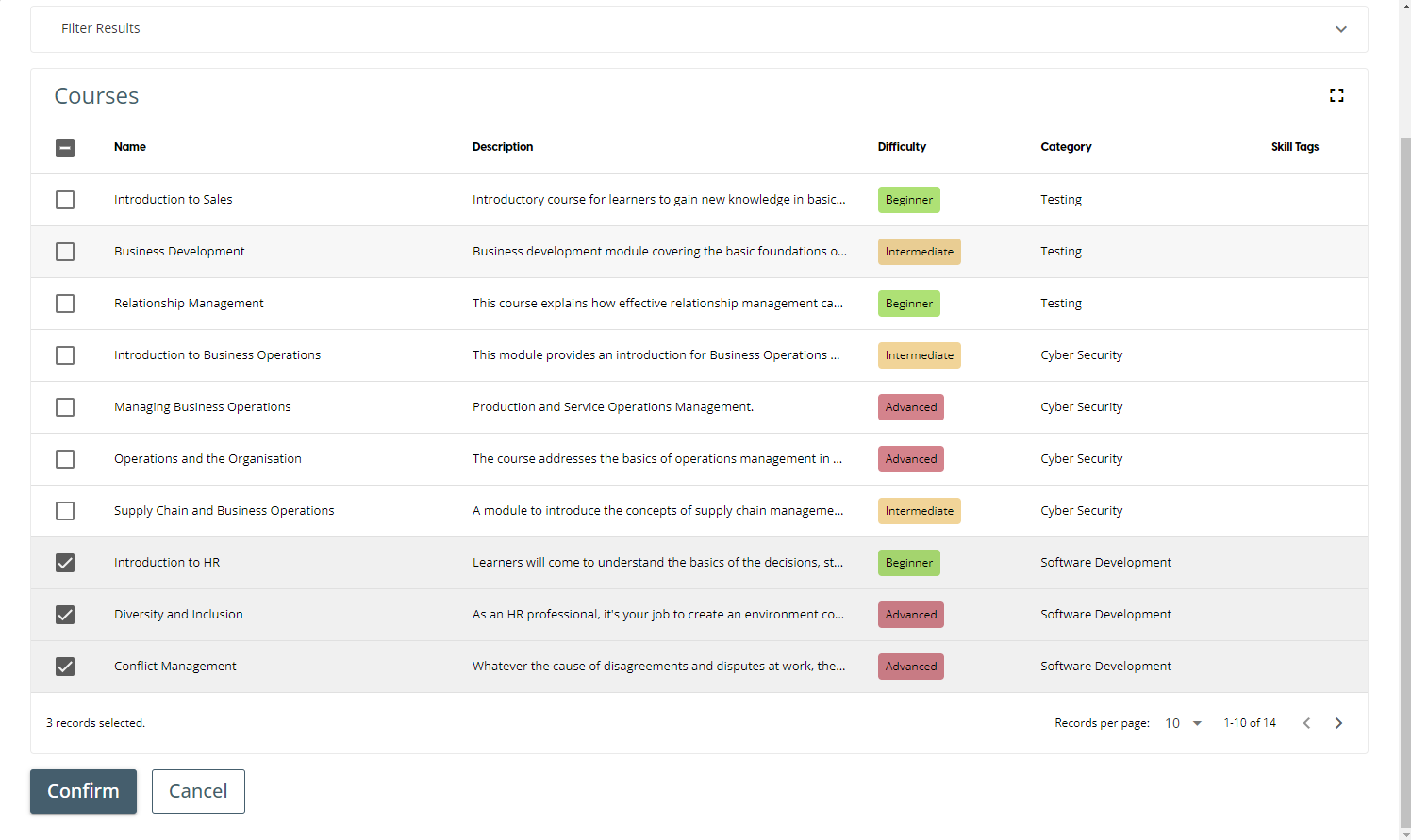
Once you are happy with your selections, click on Confirm. This will close the window and add the selected courses to the Selected Learning list. If you have selected a training path, it will insert the individual courses from the training path into the list.
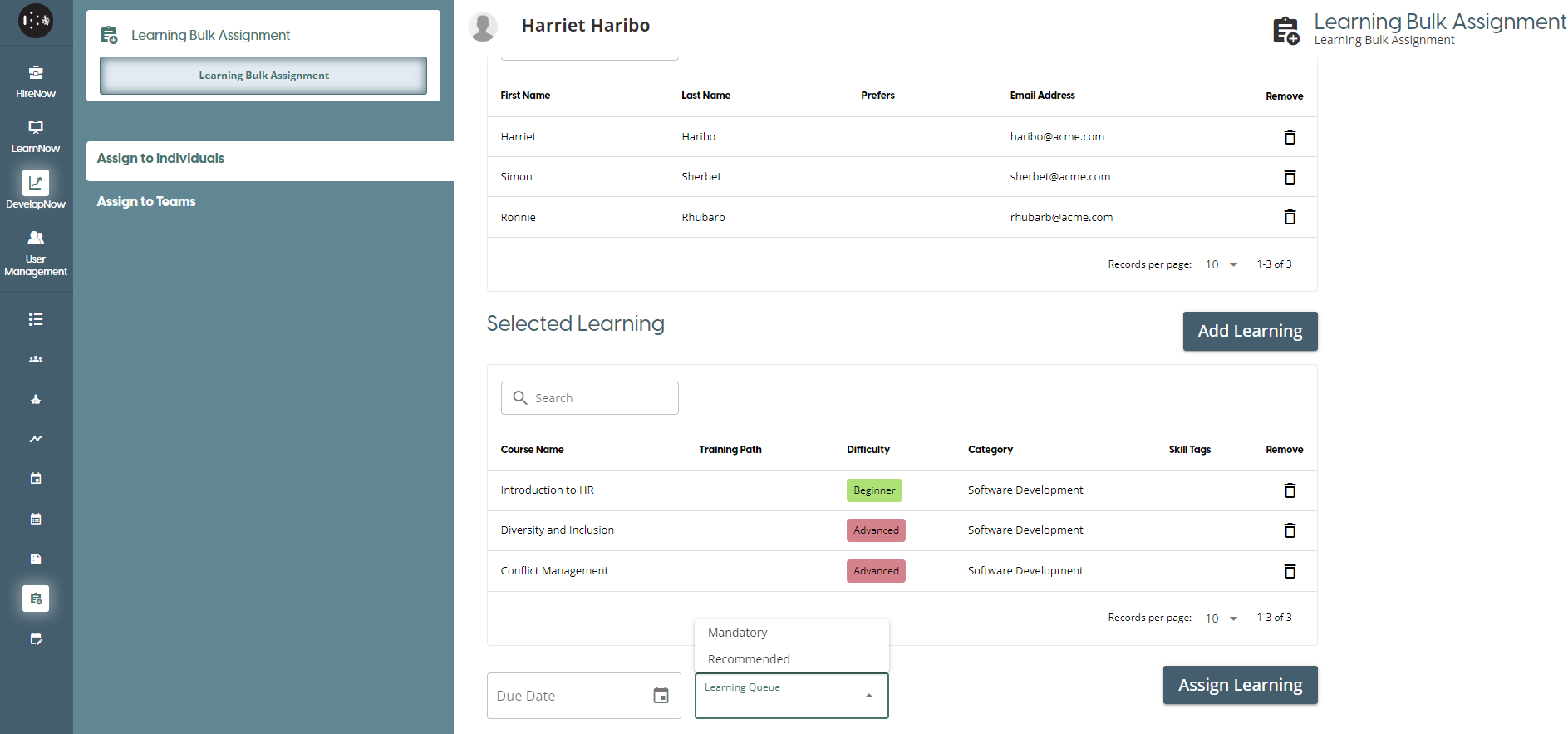
The final step is to select a Due Date and learning queue for the assigned learning, and these fields are underneath the Selected Learning table. Once these have been selected, you can click on Assign Learning to confirm your choices and assign the learning to all the selected users.
How to bulk assign learning to teams
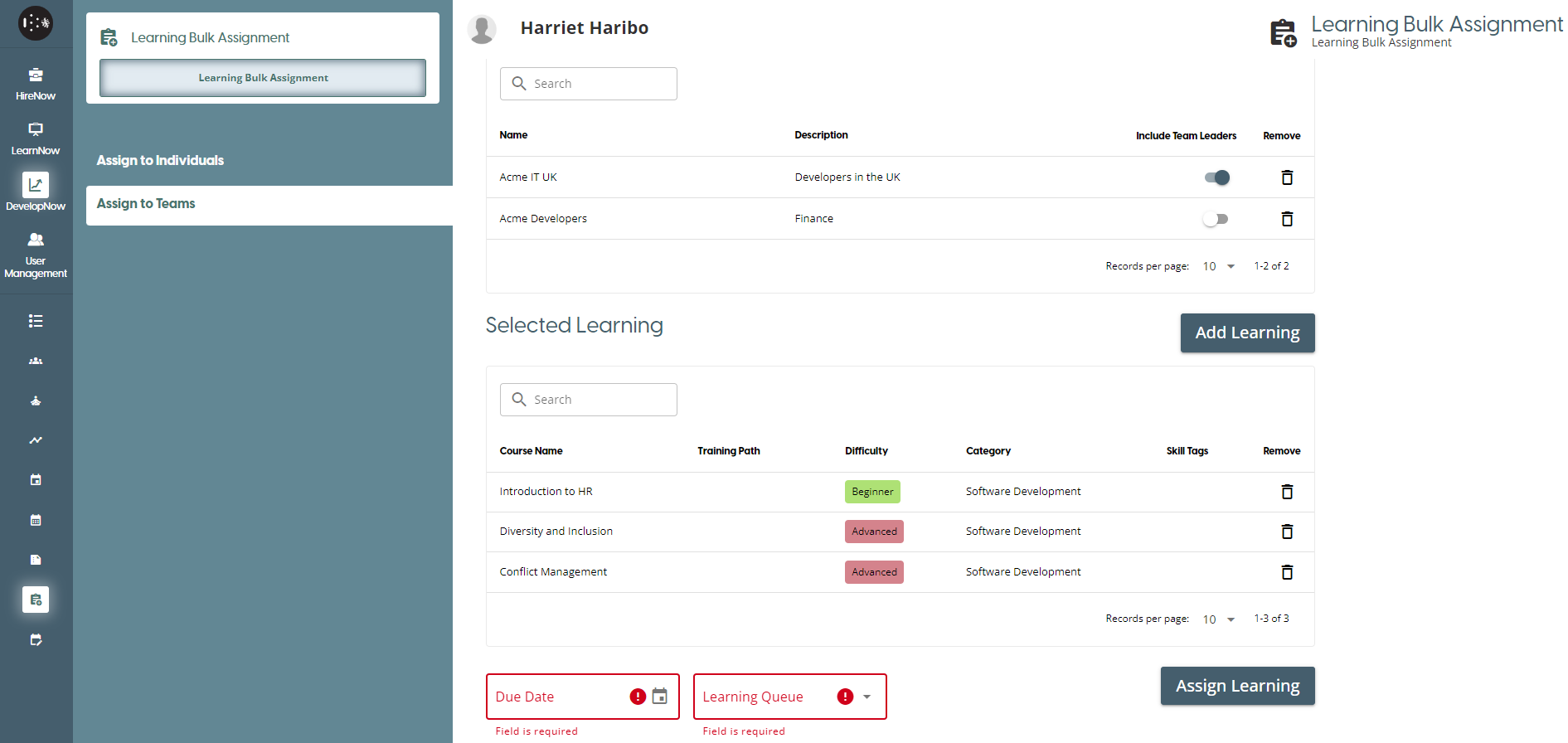
To access the bulk assign to teams page, click on the Assign To Teams option in the navigation panel.
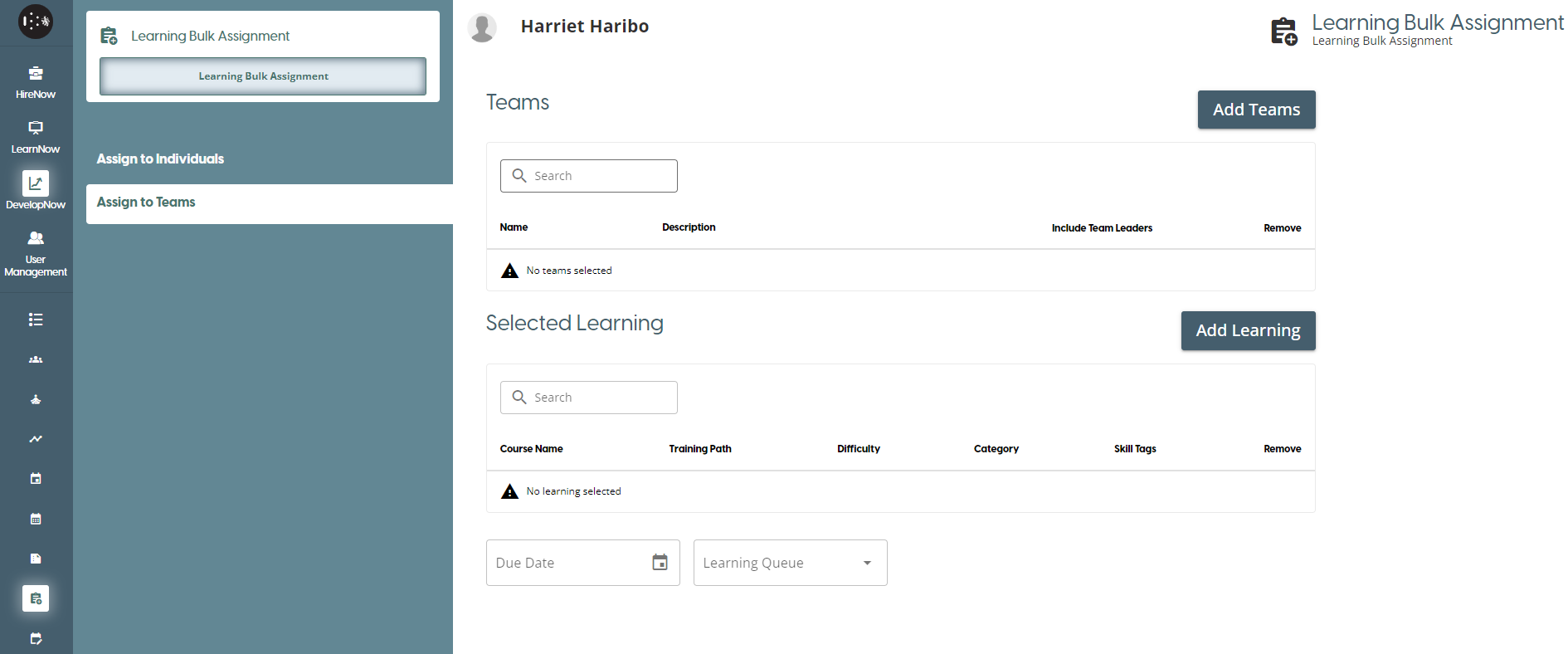
The first step is to select the teams you wish to assign learning to. Clicking on the Add Teams button will open up the teams list.
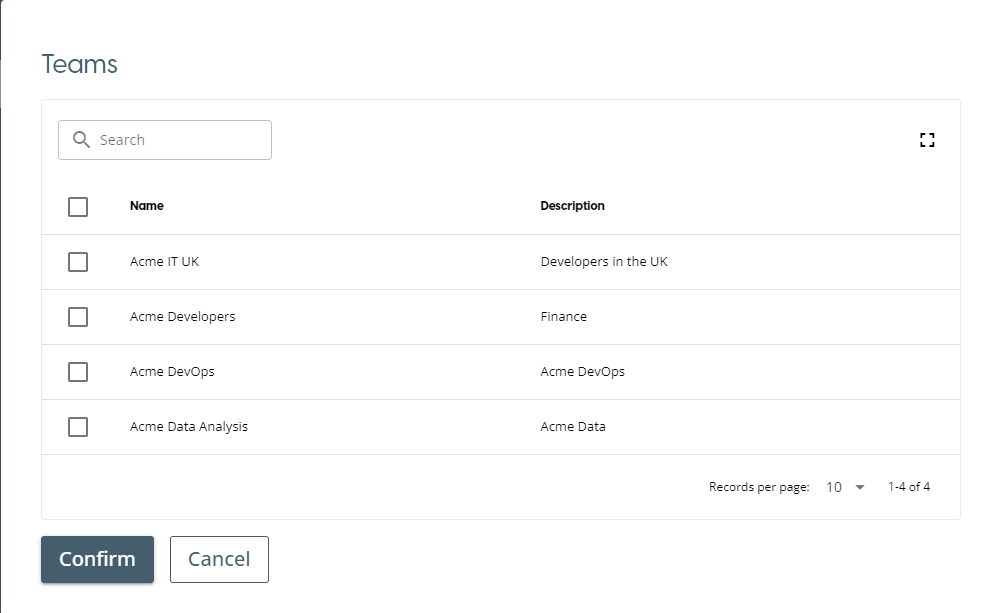
To select a team, click on the checkbox to the left of the name. You can search the teams list via the search bar, which will filter teams based on their names. Searching for a team will not affect any previously checked teams. Once you are happy with the team selection, click on the Confirm button to verify your selection.
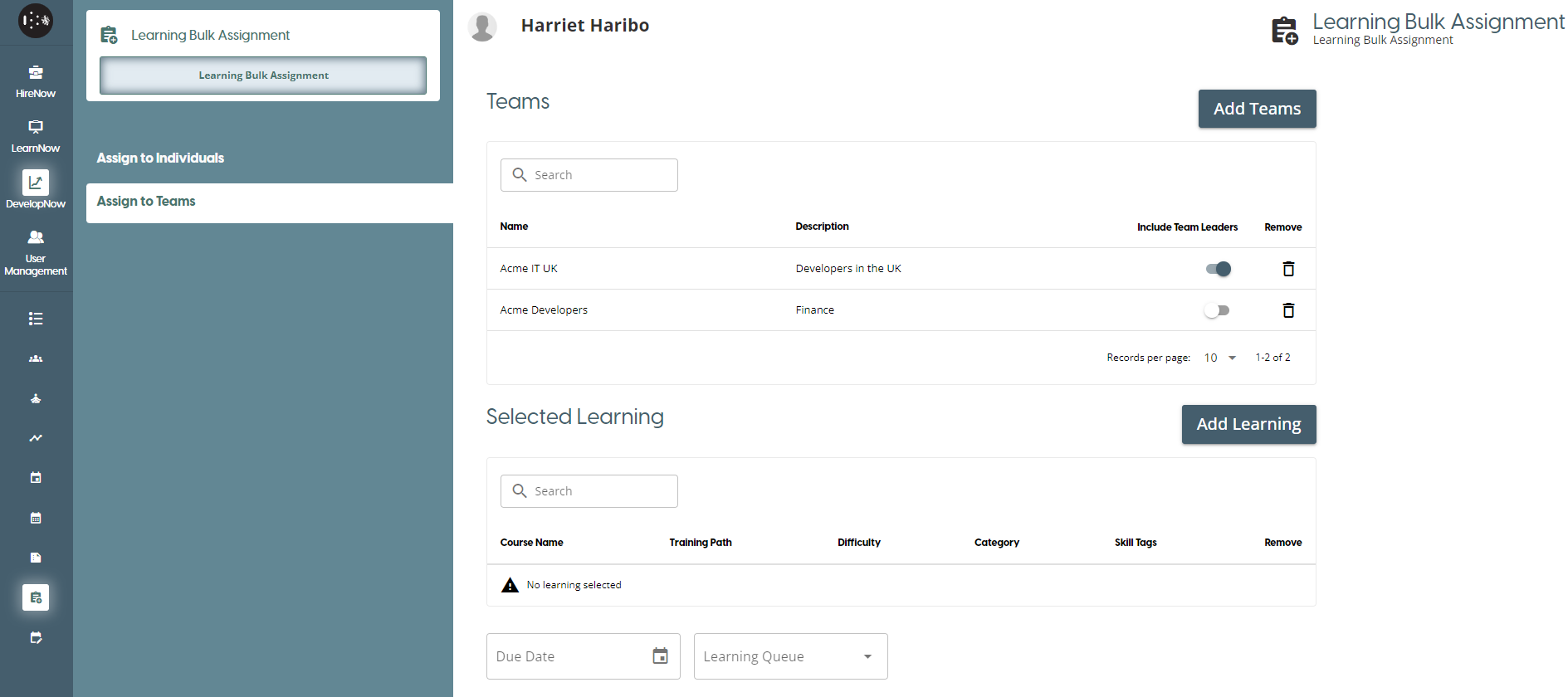
When there are teams in the Teams table, there is an "Include Team Leaders" toggle. If this toggle is on, then both team leaders and team members will have the learning assigned to them. If the toggle is off, only team members will have learning assigned to them.
To select the learning you wish to assign, click on the Add Learning button to open the Assign Learning window.
In this window you can select both courses or training paths to assign to individuals. To switch between the two options, click on the respective tabs. You can also filter the results by clicking on the Filter Results section, which provides various fields to filter the lists.
Once you are happy with your selections, click on Confirm. This will close the window and add the selected courses to the Selected Learning list. If you have selected a training path, it will insert the individual courses from the training path into the list.
The final step is select a due date and learning queue for the selected learning. These two fields are below the selected learning table. Once you have selected those options, click on the Assign Learning button to bulk assign learning to teams.