Certificates
DevelopNow Portal > Personal Development > “…”
Description
As a team member, I can upload certificates to my profile so I can keep a record of all my achievements in one place.
Applicable User Roles
List of roles that have access or can use this feature.
Team Member,
Team Leader
How To upload a certificate
On the Personal Development page there is a new section - Certificates.
To add a Certificate to this section, first click on the 'Add Certificate' button to begin the process.
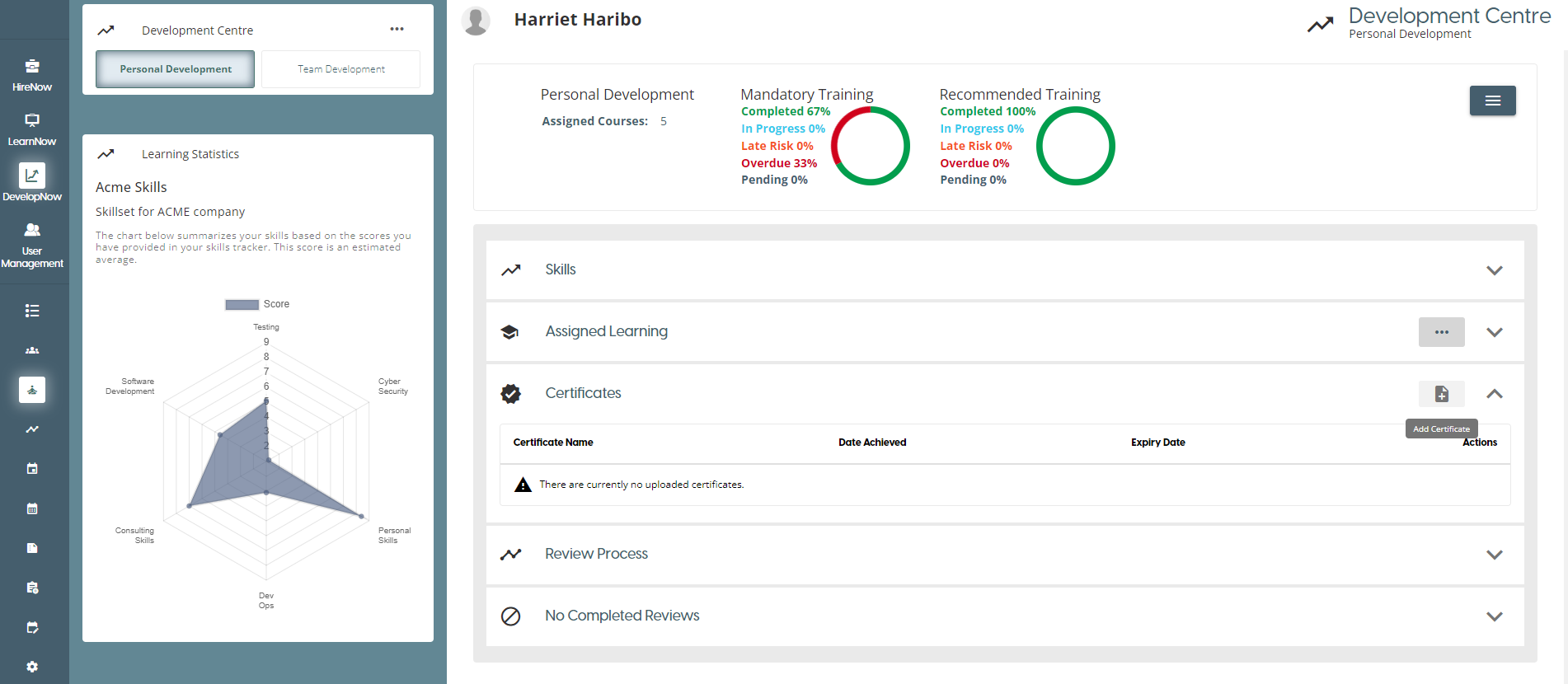
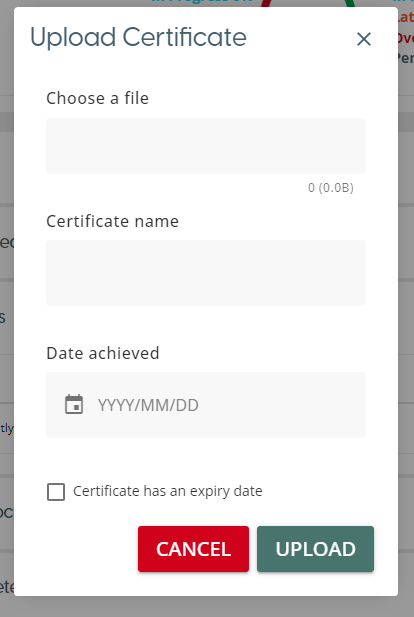
Clicking on this will open the Certificate Upload dialog. Clicking on the 'Choose a File' section will allow you to select a file from your device to upload. You must also add a Name and Date Achieved in order to upload the document.
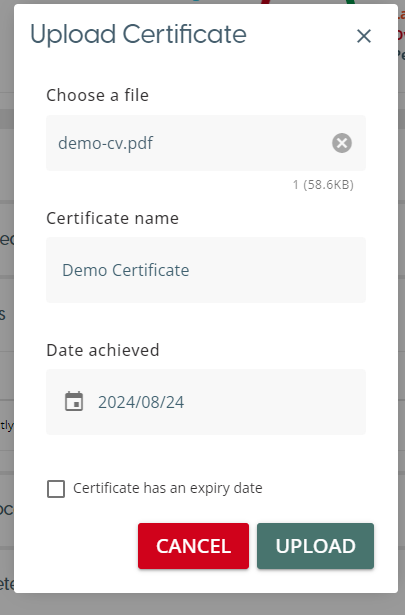
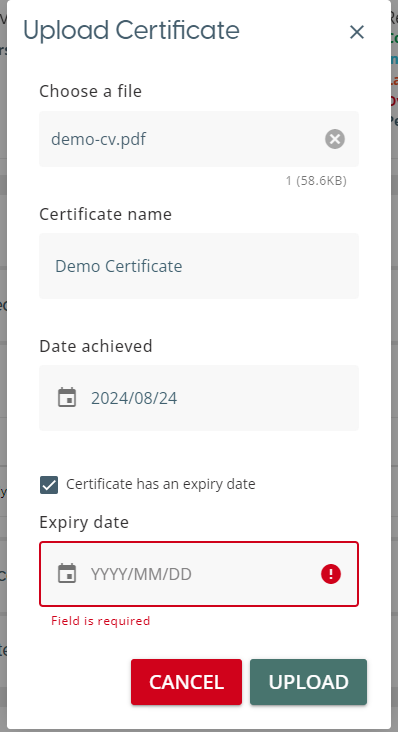
If you wish to add an expiry date, check the Expiry Date checkbox to show the final date selector. This checkbox can be unchecked if there is no expiry date.
Once the upload is complete, the file will be displayed in the Certificates table.
How to manage your Certificates
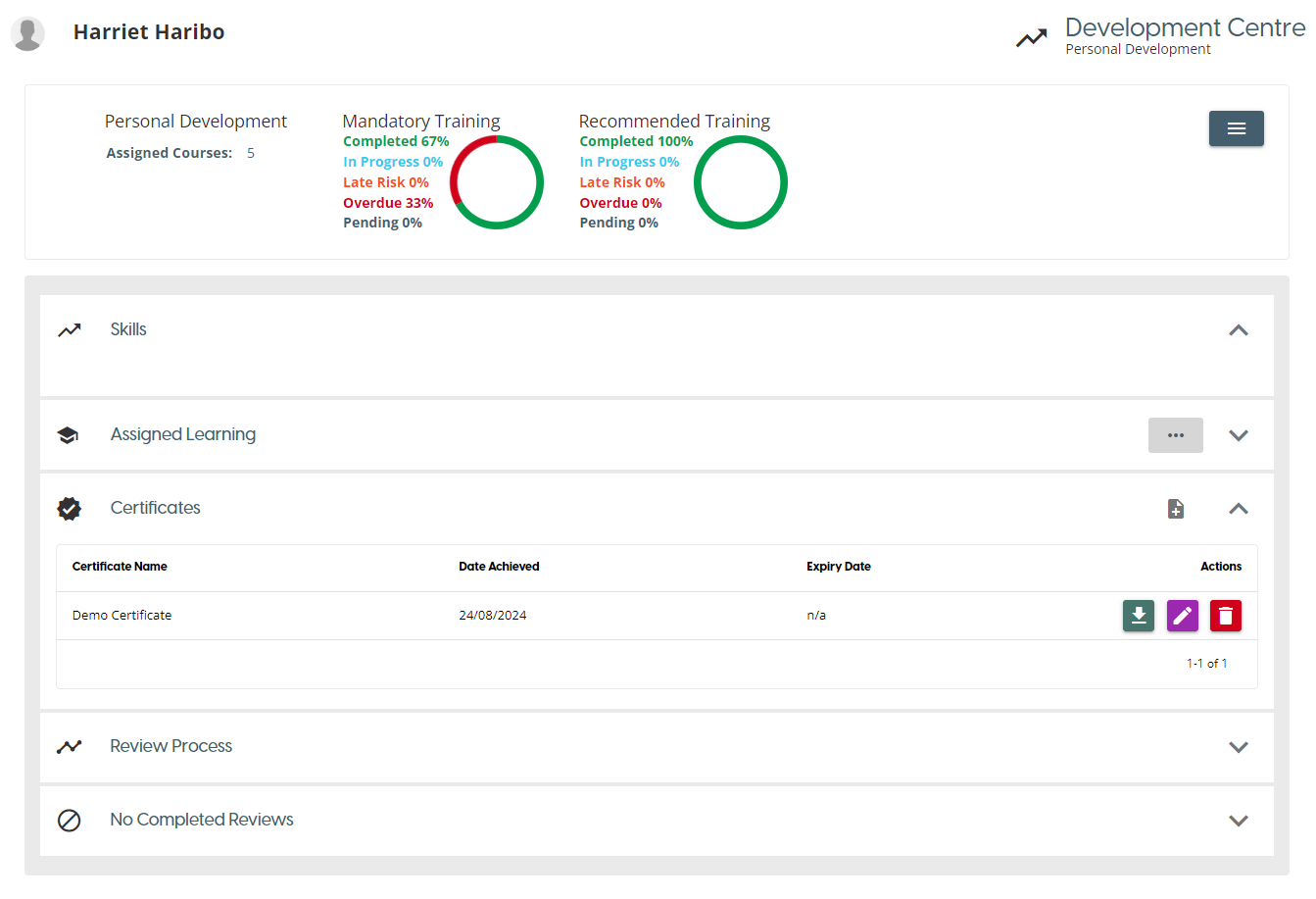
Once there is at least one certificate in the Certificate section, you will be able to manage it via the icons in the action column.
- The Download icon will download the file to your device.
- The Edit icon will let you update the Date Achieved and the Expiry Date values. If you wish to change the name, delete the file first then upload a new one with the updated name.
- The Bin icon will permanently remove the file from SkillsNow.