Assigned Learning
DevelopNow Portal > Personal Development > “…”
Description
As a content consumer, I can see the learning that has been assigned to me so that I can complete any learning in a timely manner.
Applicable User Roles
Team Member
Assigned Learning
Courses table
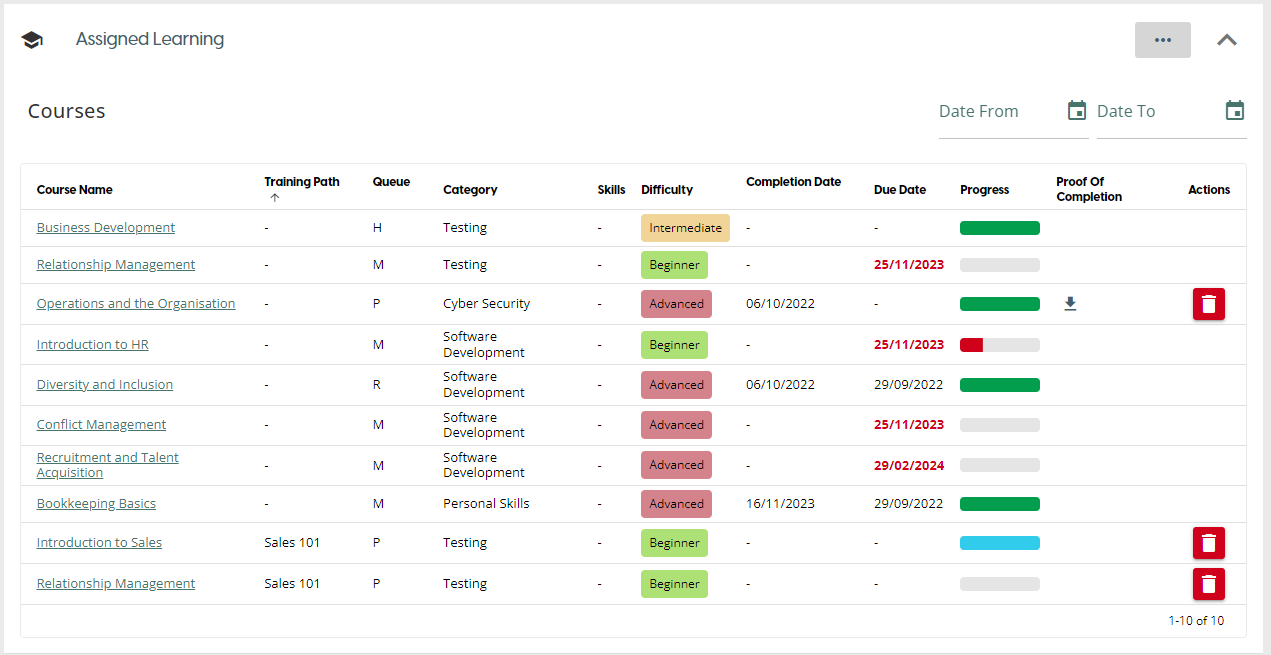
The Courses table is the easiest way to view the learning that has been assigned to you. The table can be sorted by any of the table headers, allowing you to quickly sort the table by a variety of attributes.
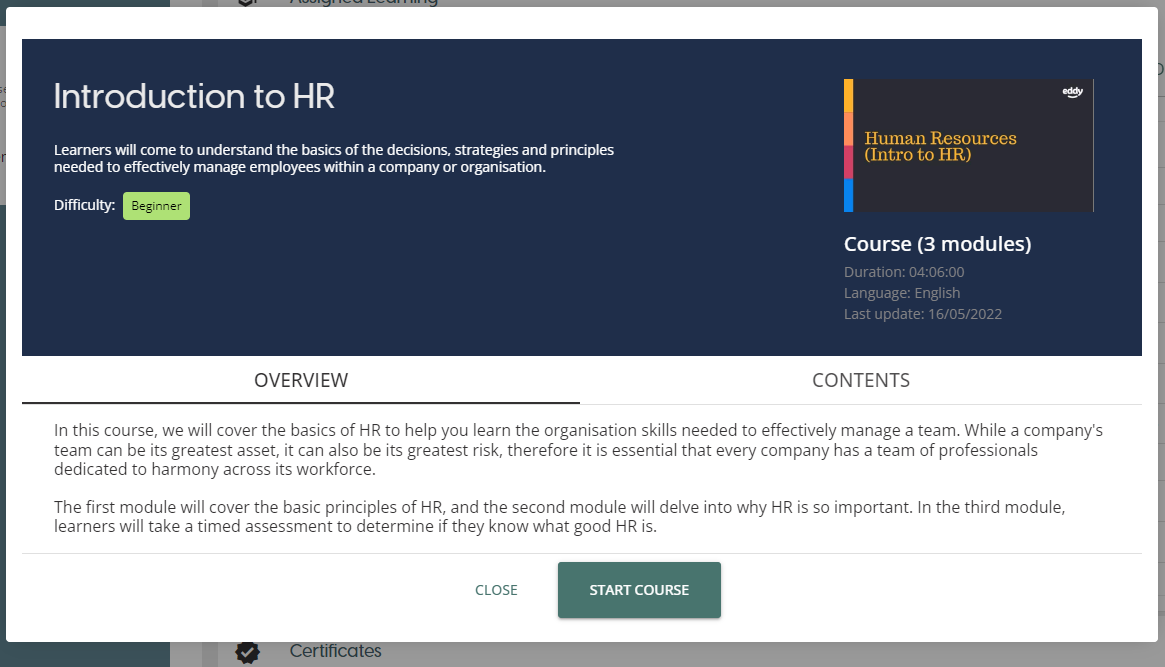
To start a course that has been assigned to you, click on the course name in the table. This will open a Course Preview window with information about the course, including an overview of the modules and materials it it's an internal course. If the course is in a Published state, there will be a Start Course button you can click which will redirect you to the course page in LearnNow.
Proof of Completion
If you have an external course in your learning queue which is completed, you have the ability to upload a Proof of Completion directly from the courses table. If you have a valid course in the table, it will have the upload icon in the Proof of Completion column.
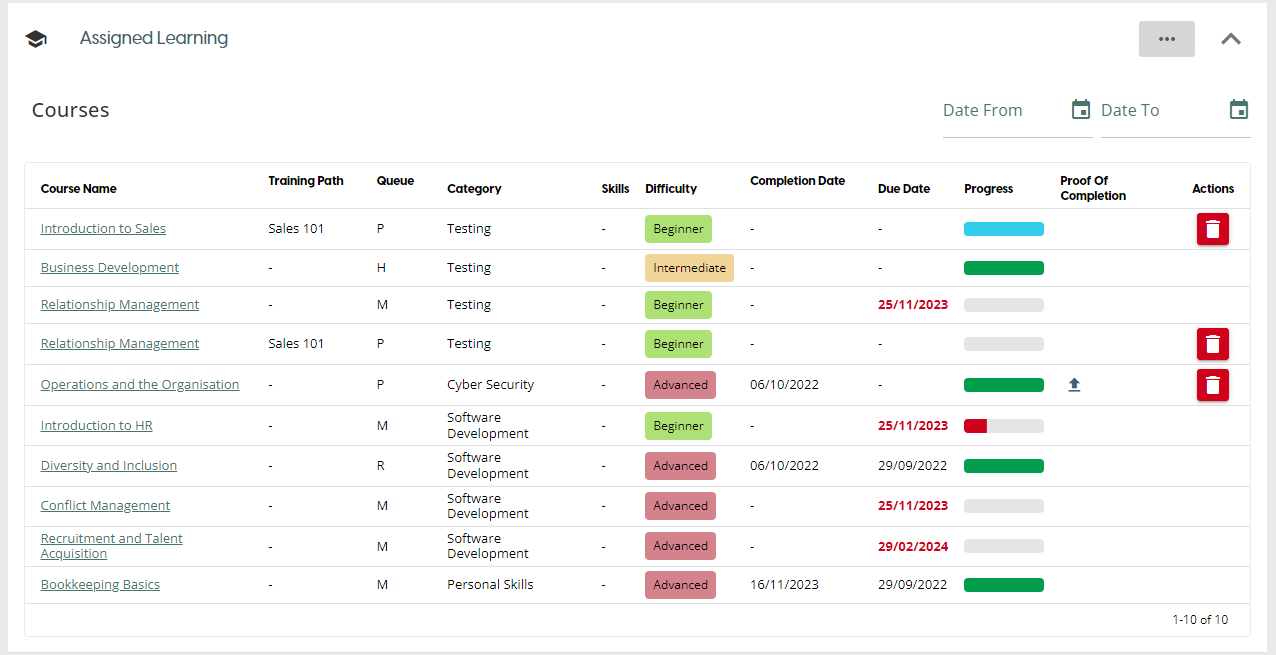
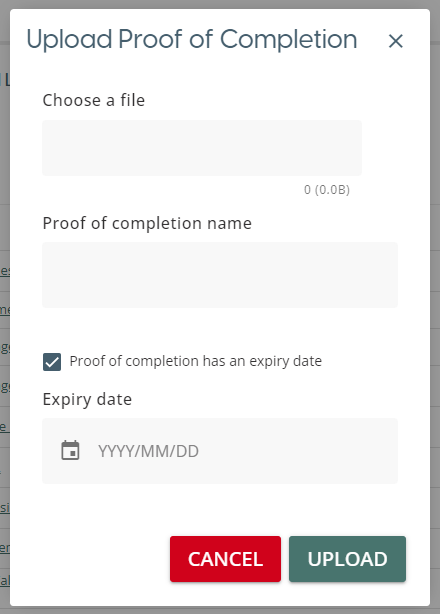
After clicking on the icon, you will see a Proof of completion pop-up which allows you to select a file from your device to upload. If your Proof of Completion has an expiry date, ensure you check the checkbox to allow you to set an expiry date. Once you are ready, click on the Upload button to attach your Proof of Completion to the course.
If a course in the table has a Proof of Completion already attached, there will be a download icon in the Proof of Completion column instead. Clicking on this will download the file directly to your device.
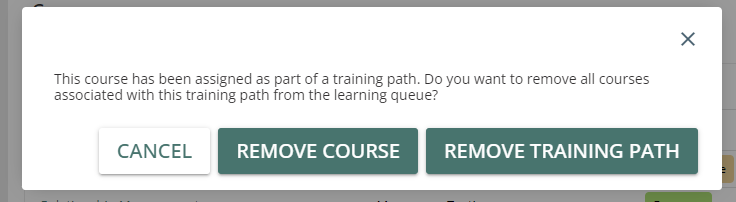
Deleting a Course
If you have self-assigned a course, you will also be able to remove it from your Learning Queue. Any course in your Personal learning queue wil have a bin icon in the Actions column of the Courses table. Clicking on the Delete button will display a confirmation pop-up to confirm the course you wish to delete. If the course was assigned as part of a Training Path, the pop-up will also give you the option to remove the other courses that are part of the Training Path.